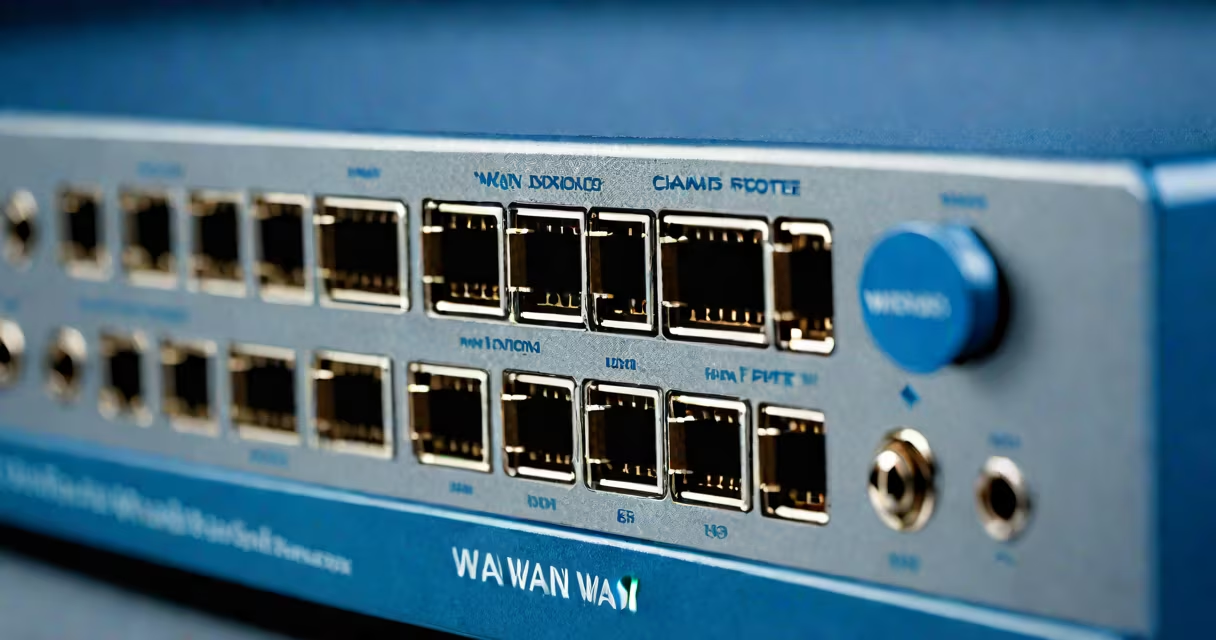
The WAN port on a router is the primary interface that connects to your internet service provider's modem or fiber box, serving as the gateway between your local network and the wider internet. It handles incoming and outgoing traffic from external sources, making it essential for all devices on your network to access online services.
Unlike LAN ports, which connect internal devices like computers and smart TVs, the WAN port receives the raw internet signal from your ISP. It typically uses an RJ-45 connector, the same type found on Ethernet cables, and is often color-coded yellow or blue on consumer routers for easy identification.
For example, when you plug a cable from your modem into the WAN port of a TP-Link Archer AX50, the router establishes a direct link to your ISP's network. Without this connection, no device on your Wi-Fi or wired network can reach websites, stream video, or send emails.
The WAN port functions as the entry point for all external communication. When you request a webpage, your device sends a packet through a LAN port to the router. The router then forwards the request via the WAN port to your ISP's network, which routes it to the destination server. Responses follow the reverse path.
This process relies on the router assigning a public IP address to the WAN port, usually obtained dynamically through DHCP from your ISP. Some users manually configure static IPs or use PPPoE authentication-common in DSL and fiber setups-where the router prompts for a username and password during setup.
For instance, a residential Comcast Xfinity customer using a Netgear Nighthawk R7000 must enter their account credentials in the router's web interface to authenticate the WAN connection. Without this step, the WAN port remains inactive despite physical connectivity.
Most consumer routers feature a single WAN port, though enterprise-grade models may support multiple WAN connections for redundancy or load balancing. The standard interface is an RJ-45 Ethernet port, but some industrial or mobile routers use USB or mini-PCIe for cellular modems.
| Port Type | Typical Use | Connection Example |
|---|---|---|
| RJ-45 WAN | Home and small office routers | Connecting to a cable modem |
| USB WAN (via dongle) | Mobile broadband or backup links | Using a 4G LTE USB stick |
| PPPoE-over-Ethernet | DSL or fiber with authentication | Entering ISP login details in router settings |
Some dual-WAN routers allow failover or bandwidth aggregation-ideal for businesses needing constant uptime. For example, a business using a DrayTek Vigor 2960 with two WAN ports can route traffic through both a fiber line and a 5G backup, ensuring uninterrupted access during outages.
The WAN port is foundational in any network that requires internet access. It enables core functions like DNS resolution, NAT translation, and firewall filtering. Without it, your router cannot act as a gateway.
Home users rely on it daily. When you watch Netflix, play online games, or join a Zoom call, each action begins with a packet sent from your device to the router's WAN port. The router then manages routing, security, and bandwidth allocation.
Even in complex setups, such as a home office with multiple VLANs, the WAN port remains the single point of exit to the internet. A misconfigured WAN setting can prevent all internet access-even if LAN ports work perfectly.
Many people mistake the WAN port for a LAN port, especially on compact routers where all ports look identical. However, the WAN port is not meant for connecting devices like printers or desktops. Plugging a computer into the WAN port causes network failure because the router treats it as an upstream provider, not a client.
A frequent error is assuming that a router can function without a WAN port. While routers can operate in isolated mode-creating a private network without internet-they lose their primary purpose. A router without a WAN connection cannot provide internet access, even if all LAN ports are active.
Another misconception is that the WAN port supports higher speeds than LAN ports. In reality, both use the same Ethernet standards (e.g., Gigabit Ethernet), but the WAN port's speed is limited by your ISP's plan. A 1 Gbps WAN port won't deliver faster internet than a 100 Mbps plan.
One non-obvious fact: the WAN port often runs a different subnet than LAN ports. For example, a typical home router assigns the LAN network 192.168.1.0/24 and the WAN interface a changing IP from your ISP's pool-often in ranges like 10.x.x.x or 192.168.0.x. This separation prevents conflicts and enhances security.
Consider a user setting up a new router at home. They have a cable modem provided by Spectrum. The steps are:
After configuration, devices connected via Wi-Fi or LAN ports gain internet access. If the WAN light on the router stays red or blinks erratically, the issue lies in the WAN port connection-commonly due to incorrect cable or ISP outage.
During one test, I set up a new Asus RT-AX86U in a rental apartment. After plugging the cable into the WAN port, the router failed to obtain an IP. Troubleshooting revealed the ISP required a specific VLAN tag. Once configured in the router's advanced settings, the WAN port successfully connected.
The WAN port on a router is the dedicated interface for connecting to the internet. It enables all external communication and acts as the bridge between your private network and the global internet. Understanding its role prevents common setup errors and ensures reliable connectivity.