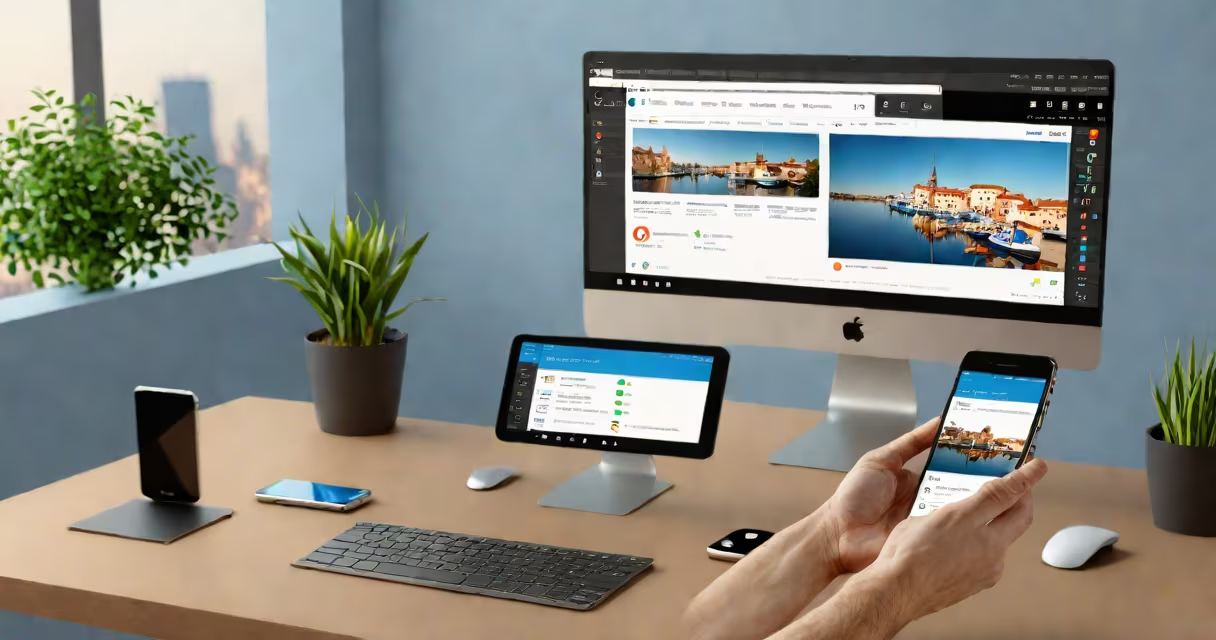
Remote desktop from phone lets you access and control a computer's desktop interface using a smartphone or tablet. You connect via internet-enabled software, enabling file transfers, application launches, and system management from a mobile device.
Access requires a computer running a remote desktop service-such as Windows Remote Desktop, TeamViewer, or AnyDesk-and a compatible app installed on the phone. The connection uses encrypted channels to protect data during transmission. This setup allows users to manage workstations, troubleshoot issues, or retrieve files while away from their primary machine.
For example, a network administrator can diagnose a server issue from a coffee shop using a remote desktop app on an Android phone. They enter the computer's IP address and authentication credentials through the app, then interact with the desktop as if sitting in front of it. All actions-mouse movements, keystrokes, window resizing-are mirrored in real time.
The process begins with a host computer configured to accept incoming remote connections. On Windows, this involves enabling Remote Desktop Services in System Properties and assigning a user account with permission to connect. The computer must remain powered on and connected to the internet, either via Ethernet or Wi-Fi.
On the phone, you install a remote desktop client app such as Microsoft Remote Desktop, TeamViewer, or Chrome Remote Desktop. These apps establish a secure tunnel through the internet using protocols like RDP (Remote Desktop Protocol), TLS encryption, and changing port forwarding. The app sends touch inputs and screen updates between devices with minimal delay.
When you tap a window on your phone, the action translates into a mouse click or keyboard command on the remote machine. Screen images are compressed and streamed at 15-30 frames per second, depending on bandwidth. A stable 5 Mbps connection ensures responsive performance; slower speeds result in lag or dropped frames.
Several apps support remote desktop from phone across iOS and Android. Each uses different authentication methods and feature sets.
| App | Platform Support | Authentication Method | Security Features |
|---|---|---|---|
| Microsoft Remote Desktop | iOS, Android, iPadOS | Windows username/password, MFA | End-to-end encryption, session logging |
| TeamViewer | All major OSes | Unique ID + password | 256-bit AES encryption, auto-session termination |
| AnyDesk | Android, iOS, Windows, macOS | Connection code + password | DTLS encryption, no persistent data storage |
| Chrome Remote Desktop | Android, iOS, Chrome OS | Google Account sign-in | Two-factor authentication, limited session duration |
Each app has distinct strengths. Microsoft Remote Desktop integrates with Active Directory and supports multi-monitor setups. TeamViewer offers unattended access and cross-platform file transfer. AnyDesk prioritizes low latency and small footprint. Chrome Remote Desktop is ideal for users already signed into Google services.
For instance, a freelance graphic designer using an iPad and Adobe Creative Cloud on a Windows workstation can use Microsoft Remote Desktop to access design tools remotely. They log in with their domain account, open Photoshop, and continue editing a project while traveling.
Remote desktop from phone is often confused with screen mirroring or remote access via cloud storage. Screen mirroring duplicates the display to another device but doesn't allow interaction. Cloud storage apps like Dropbox sync files but don't run applications or control the operating system.
A critical mistake is assuming all remote desktop apps provide equal security. Some free versions lack end-to-end encryption or store session logs on third-party servers. According to the National Institute of Standards and Technology (NIST), unencrypted remote sessions are vulnerable to man-in-the-middle attacks. Always verify that the app uses TLS 1.3 or higher and disables automatic login features unless strictly necessary.
Another misconception is that remote desktop from phone works over cellular networks without issues. While 4G LTE supports basic navigation, complex tasks like video rendering or large file transfers require Wi-Fi. A 2022 study by the University of California, Berkeley, found that average latency on 4G was 45ms, compared to 12ms on home Wi-Fi-enough to cause noticeable delays during high-precision work.
Set up remote desktop from phone with these steps: enable Remote Desktop on the host PC, assign a static IP or use a changing DNS service, create a dedicated user account with limited privileges, and install the client app on the phone. Test the connection from a different network to confirm reliability.
I once used TeamViewer to assist a client with a corrupted registry entry while on a train. I accessed their Windows 10 machine from my iPhone, navigated to the System32 folder, restored the backup, and rebooted-all within 12 minutes. The session ended automatically after 30 minutes of inactivity, preventing unauthorized access.
For businesses, remote desktop from phone enables IT teams to resolve incidents outside office hours. A 2023 report by Gartner noted that organizations using mobile remote access reduced average downtime by 37% compared to those relying solely on in-person support.
Always disable remote access when not in use. Configure firewalls to restrict inbound connections to specific IP ranges. Use strong passwords and enable multi-factor authentication. Avoid sharing connection codes or IDs publicly.