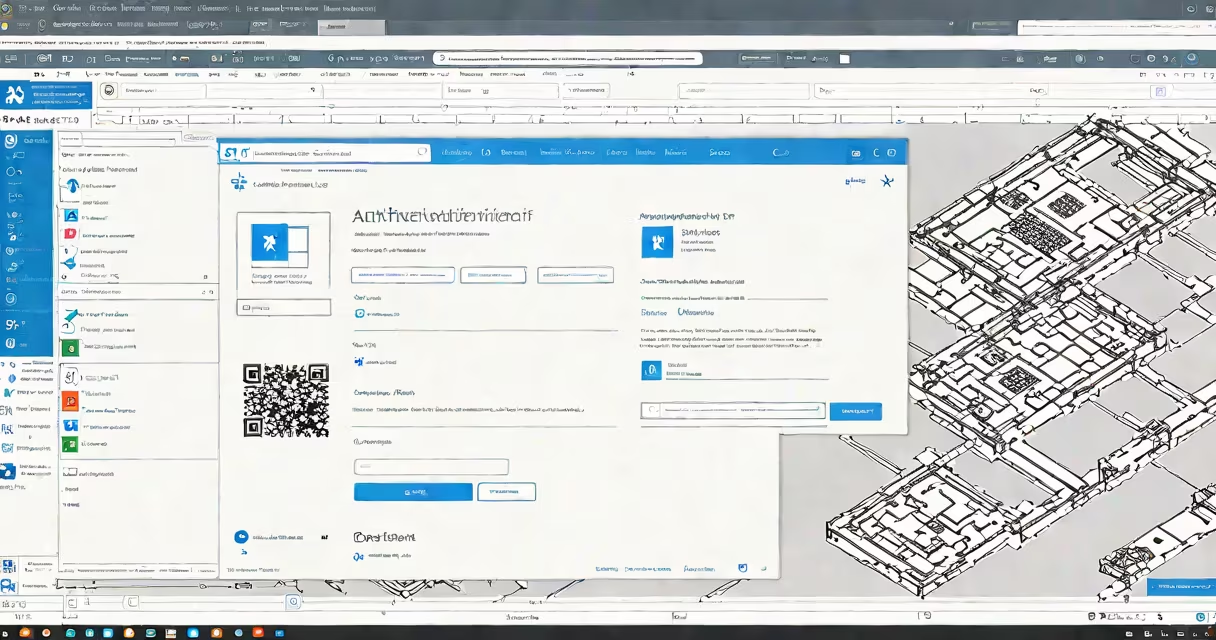
Microsoft Authenticator is a mobile app that generates time-based one-time passwords (TOTPs) for two-factor authentication (2FA) on Windows 11 devices. It replaces SMS-based codes with a more secure, app-only method for verifying identity during sign-ins.
When you enable 2FA via Microsoft Authenticator on Windows 11, you're prompted to scan a QR code or enter a setup key during account registration. After setup, the app generates a six-digit code every 30 seconds. You enter this code alongside your password when signing into Microsoft accounts, work or school portals, or third-party services that support TOTP.
Unlike SMS-based 2FA, which can be intercepted through SIM-swapping attacks, Microsoft Authenticator uses cryptographic algorithms stored locally on your device. This makes it harder for attackers to gain access even if they compromise your email or phone number. The app runs on Android, iOS, and Windows 11, but the Windows 11 version offers deeper integration with the OS's biometric and credential management systems.
On Windows 11, Microsoft Authenticator integrates with the operating system's built-in security features. When you sign in with a Microsoft account, the system checks whether 2FA is enabled. If so, it prompts you to open the Authenticator app and enter the current code.
The app syncs securely with your Microsoft account through encrypted cloud backups. If you lose your device, you can restore access using recovery keys or alternate verification methods. However, unlike older versions, the Windows 11 app no longer stores recovery codes locally-it relies on the Microsoft Account Recovery Portal for backup access.
For enterprise users, administrators can enforce 2FA policies via Azure Active Directory. Devices enrolled in Intune can auto-configure the Authenticator app for new users. This reduces setup friction and ensures compliance with organizational security standards.
Microsoft Authenticator supports multiple account types on Windows 11:
Not all services support TOTP. For example, Apple ID requires a different method (Apple's own 2FA system). To confirm compatibility, check the service's security settings under "Two-Factor Authentication" or "Security Verification."
Some apps use push notifications instead of codes. Microsoft Authenticator supports this mode too. When you log in, a notification appears on your device asking to approve the sign-in. This is faster and more convenient than typing a code-but less suitable for automated scripts or headless environments.
Many users assume Microsoft Authenticator is only for personal accounts. That's incorrect. It's widely used in business environments. A 2023 report from Microsoft Security Intelligence found that 68% of organizations using Azure AD require 2FA via Authenticator for remote access.
Another misconception is that the app works offline. While it generates codes without internet access, initial setup and syncing require connectivity. If you disable Wi-Fi and cellular data, the app continues generating valid codes-but you cannot register a new account or restore from backup.
A third error: assuming the app is vulnerable to phishing. The app includes anti-phishing protections. It displays the domain name of the site requesting login. If the domain doesn't match the expected URL, the app warns you. This prevents man-in-the-middle attacks that trick users into entering codes on fake login pages.
To set up Microsoft Authenticator on Windows 11:
After setup, you'll see a prompt to enter the code when signing in. The code changes every 30 seconds. If you're using a work or school account, your IT admin may have configured conditional access policies that require approval via the app for certain actions.
Here's how Microsoft Authenticator compares to common alternatives:
| Method | Security Level | Reliability | Best For |
|---|---|---|---|
| SMS-based 2FA | Low | Medium | Basic accounts with limited risk |
| Authenticator app (TOTP) | High | High | Personal and business accounts requiring strong protection |
| Hardware tokens (YubiKey) | Very high | Very high | High-security roles, government, finance |
| Push notifications (e.g., Microsoft Authenticator) | High | High | Quick access on trusted devices |
While hardware tokens offer stronger protection, they're not practical for most users. The Microsoft Authenticator app strikes a balance between security and usability. It's free, available on all major platforms, and integrates natively with Windows 11's lock screen and biometrics.
Microsoft Authenticator Windows 11 is not a standalone identity provider. It does not replace your password or store credentials. Instead, it acts as a second factor-proving you are who you claim to be. This layer of verification drastically reduces the risk of unauthorized access.
Using Microsoft Authenticator Windows 11 strengthens your digital security posture. It's a simple step with outsized impact-especially against credential theft, which remains the top attack vector in 2024.