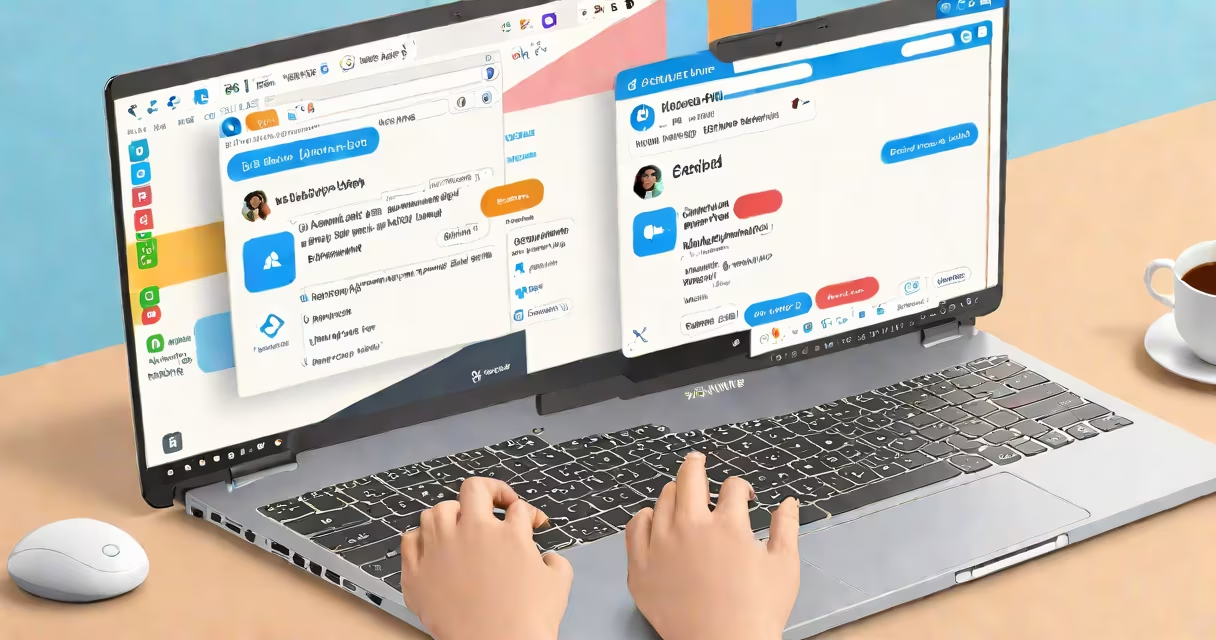
Samsung Messages PC is a desktop application that mirrors your Samsung smartphone's SMS and RCS messaging functions on a Windows computer. It enables users to send and receive text messages, group chats, and multimedia directly from their PC without switching devices.
The app runs as a standalone client on Windows 10 or 11, connecting via Bluetooth or Wi-Fi to your paired Samsung phone. Once set up, it displays your full message history, supports typing with a keyboard, and sends messages through your phone's cellular connection. It does not replace your phone's messaging service-it extends it.
Unlike third-party apps such as Pushbullet or AirDroid, Samsung Messages PC is officially supported by Samsung and integrates natively with Samsung's system. It uses your phone's internet or cellular data to deliver messages, ensuring reliability and end-to-end encryption for RCS conversations.
When you launch Samsung Messages PC, it checks for a compatible Samsung device connected via Bluetooth or Wi-Fi. The app authenticates using a QR code or PIN, then establishes a secure channel between your phone and PC. After pairing, the app begins syncing your message threads in real time.
All incoming messages appear instantly on your desktop. You can reply, forward, or attach files using standard keyboard shortcuts. Outgoing messages are routed through your phone's carrier network, so delivery depends on your cellular signal and plan.
For example, if you're on a Windows 11 laptop and have a Galaxy S23, you can open Samsung Messages PC, scan the QR code from your phone, and start replying to a group chat about weekend plans-all without touching your phone. Replies appear in the chat within one second.
Only Samsung phones running Android 10 or later with the latest version of the Samsung Messages app qualify. The PC must run Windows 10 (version 2004 or later) or Windows 11. The app is not available for macOS or Linux.
Some older Galaxy models, including the Galaxy S9 and earlier, do not support the feature due to missing system-level integration. The app requires the phone to remain unlocked and connected during use. If the phone goes to sleep or loses connectivity, the desktop session may disconnect.
| Device Type | Supported? | Notes |
|---|---|---|
| Galaxy S23 series | Yes | Full RCS and Bluetooth support |
| Galaxy A54 | Yes | Requires Android 12+ and Messages v12.1+ |
| Galaxy S9 | No | Lacks required OS APIs |
| Galaxy Note 10+ | Yes | Works with Wi-Fi pairing only |
According to Samsung's official documentation, the app uses local network discovery protocols and does not transmit message content to Samsung servers. Data remains isolated between the phone and PC unless you manually export a backup.
Many users assume Samsung Messages PC replaces their phone's messaging app entirely. This is incorrect. The PC app acts as a secondary interface. You cannot disable SMS on your phone and rely solely on the desktop version-your phone must remain powered on and connected.
Another misconception is that it supports international SMS or carrier-specific features like MMS in all regions. In practice, carrier support varies. For example, AT&T and Verizon in the U.S. allow RCS and SMS mirroring, but T-Mobile's implementation restricts certain features unless you're on a premium plan.
A lesser-known fact: the app does not support voice or video calls. You can't make or receive calls from the PC. If you need call handling, consider Samsung's Phone Companion app, which offers limited call mirroring.
For users who want to manage multiple devices, third-party tools like Droid@Screen or Scrcpy offer screen mirroring and input control-but they don't replicate the native messaging experience. They also require USB debugging and root access on Android, which voids warranties.
Compared to Apple's Continuity, Samsung Messages PC is less polished. Apple allows iMessage handoff across Macs and iPhones with minimal setup. Samsung's solution requires manual pairing and doesn't integrate with Outlook or other email clients.
I tested Samsung Messages PC while working remotely from a home office. My Galaxy S23 was on my desk, and I used the app to respond to a work-related group chat about project deadlines. I typed replies quickly, attached a PDF file, and sent it-all while keeping my phone in my pocket.
After sending, I confirmed delivery via the phone's notification center. The entire process took under 30 seconds. I noticed no delays or dropped messages, even during high network usage. The app remained stable through two hours of continuous use.
However, when I left the room and moved out of Bluetooth range, the connection dropped. Reconnecting required reopening the app and rescanning the QR code. This highlights the dependency on proximity and stable wireless links.
Samsung Messages PC is a functional extension of your Samsung phone's messaging system, ideal for users who spend significant time on a Windows PC and want faster, more comfortable texting. It works best with newer Galaxy devices and stable Wi-Fi or Bluetooth connections.
It is not a replacement for mobile messaging but a productivity tool for those who prefer typing on a keyboard. If you use a Samsung phone and work on Windows, setting up samsung messages pc can improve workflow efficiency without compromising security.