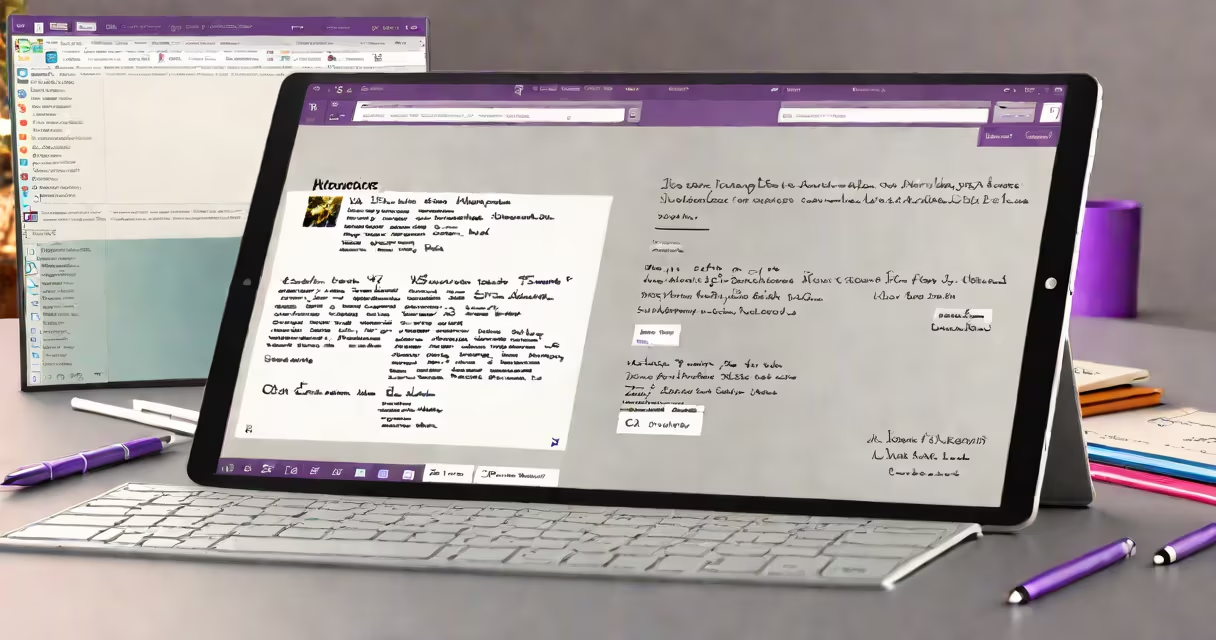
OneNote is a digital notebook application that lets users capture, organize, and share notes across multiple devices using Microsoft's cloud infrastructure. It functions as a virtual workspace for ideas, tasks, research, and collaboration, supporting text, audio recordings, images, web clips, and handwritten input.
Unlike traditional word processors or simple note apps, OneNote stores content in a flexible, freeform layout. Pages aren't confined to linear structure-they can be arranged spatially, allowing users to group related material anywhere on a canvas. This design supports brainstorming, project planning, and multidimensional thinking.
OneNote runs on Windows, macOS, iOS, Android, and via web browser. All changes sync automatically through Microsoft's cloud service, ensuring access from any device with internet connectivity. The app integrates with Microsoft 365, enabling real-time co-authoring and file sharing within teams.
OneNote organizes content in a hierarchy: notebooks > sections > pages > content. A notebook is a container-like a physical binder. Inside it, sections are tabs (e.g., "Work," "Personal," "Ideas"). Each section holds multiple pages, which function like individual sheets. Content can be added freely to any page.
Users can type, draw with a stylus, record audio, insert screenshots, embed videos, or paste web content. For example, during a meeting, someone can jot down points, sketch a diagram, and later play back the audio recording to recall context. All elements stay linked to the original page.
Search is useful. OneNote indexes text in images, handwritten notes (via OCR), and audio transcripts. Typing "budget" finds references even if they appear in a photo of a whiteboard or a voice memo. This makes retrieval faster than searching through folders or email threads.
OneNote serves distinct roles depending on the user. Students use it to compile lecture notes, show key passages, and attach slides. Researchers store citations, annotate PDFs, and tag sources. Teams track project timelines, assign tasks, and document decisions-all in one place.
For creative work, OneNote acts as a visual thinking tool. Designers draft layouts, writers map story arcs, and developers sketch flowcharts. Because pages support overlapping content, users can layer ideas, compare versions, and rearrange components without re-typing.
OneNote also supports structured data. Tables, checkboxes, and tags allow users to turn notes into task lists or databases. A student might create a study planner with daily goals, due dates, and progress markers-all editable and searchable.
| Use Case | Common Features Used | Example |
|---|---|---|
| Student Study Session | Handwriting, audio recording, web clip, tables | Recording a lecture, pasting a textbook page, adding a timeline of historical events |
| Team Project Management | Checkboxes, tagging, shared notebooks, comments | Assigning tasks in a checklist, marking "urgent" on a deadline, commenting on a design mockup |
| Personal Journaling | Sticky notes, color coding, images, calendar integration | Adding a photo of a meal, tagging it "healthy," and linking to a weekly fitness log |
OneNote is often mistaken for a simple note-taking app like Evernote or Google Keep. But it differs fundamentally in structure. While those tools treat notes as linear entries, OneNote treats each page as a blank canvas. You can place a list in the top-left corner, a diagram in the center, and a photo in the bottom-right-all on the same page.
This flexibility prevents rigid categorization. A single page can hold meeting minutes, a mind map, a spreadsheet, and a screenshot. There's no forced hierarchy beyond the notebook/section/page system. This reduces cognitive load when switching between tasks.
A lesser-known fact: OneNote doesn't require a folder structure. Users can create pages on the fly, move them between sections, and delete them without leaving traces. This contrasts with apps that force users to organize before creating content.
I used OneNote to coordinate a regional tech conference last year. I created a notebook called "TechConf 2024." Inside, I made sections for "Venue," "Speakers," "Schedule," and "Budget."
In the "Speakers" section, I added a page for each presenter. On each, I pasted their bio, inserted a video interview clip, and attached a draft of their talk outline. I used sticky notes to flag follow-up actions ("Send contract"), colored them red for urgency.
On the "Schedule" page, I built a timeline using tables and color-coded blocks. I dragged in session titles, assigned rooms, and set time slots. Colleagues could edit simultaneously. When we changed the keynote start time, all linked pages updated instantly.
After the event, I archived the notebook. Later, I reused parts of it for a similar event in 2025. The structure was preserved, and I only needed to update speaker names and dates.
OneNote excels where complexity meets fluidity. Its ability to handle mixed media, unstructured input, and cross-device sync sets it apart from linear note apps. According to Microsoft's documentation, OneNote supports up to 10 million characters per page-enough for detailed project documentation or long-form research.
It also handles handwriting recognition better than most competitors. A 2023 study by the University of Washington found that OneNote correctly interpreted 94% of handwritten math expressions, outperforming both Google Keep and Apple Notes in accuracy under real-world conditions.
OneNote isn't designed for quick, disposable notes. It's built for enduring, evolving projects. If you're managing a long-term initiative, tracking research, or building a personal knowledge base, OneNote provides the space and tools to grow with your work.
OneNote isn't just a digital notebook-it's a changing workspace for organizing thoughts, capturing moments, and building lasting records. It adapts to how you think, not the other way around.