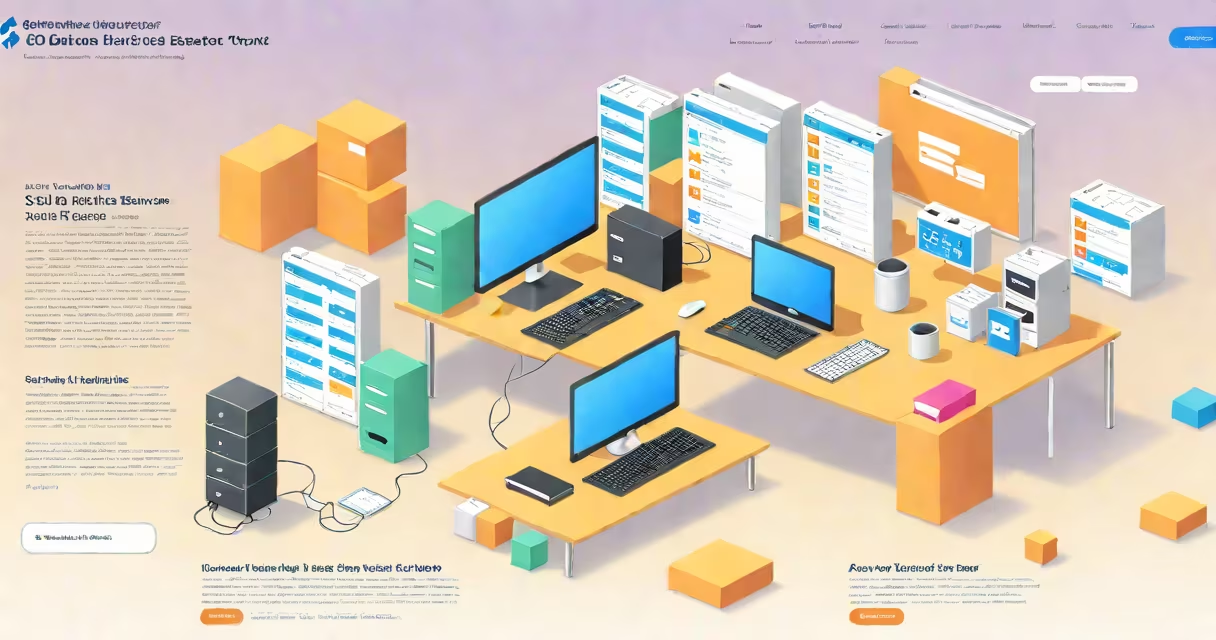
SSMS, or SQL Server Management Studio, is a graphical tool developed by Microsoft for administering, configuring, and querying Microsoft SQL Server databases. It provides a unified environment for writing Transact-SQL (T-SQL) scripts, managing server instances, and monitoring database performance.
SSMS runs on Windows and connects to SQL Server instances locally or over a network. It supports both on-premises installations and cloud-based SQL Database instances hosted on Azure. The tool includes features such as a query editor, object explorer, and integration with SQL Server Agent for job scheduling.
Developed and maintained by Microsoft, SSMS is the primary interface used by database administrators, developers, and analysts working with SQL Server. It replaced older tools like Enterprise Manager and Query Analyzer, offering a single, consistent experience across versions.
When you launch SSMS, you connect to a SQL Server instance using authentication methods such as Windows Authentication or SQL Server Authentication. After connecting, the interface displays a tree structure in the Object Explorer pane, listing servers, databases, tables, stored procedures, and other objects.
The main workspace is the Query Editor, where you write and execute T-SQL statements. You can run a single command, multiple statements, or entire scripts. Results appear in a grid below the editor, and execution plans are available via the Show Execution Plan option.
For example, running SELECT TOP 10 * FROM Sales.SalesOrderHeader returns the first ten rows from the SalesOrderHeader table. SSMS formats results in a tabular view, highlights syntax, and allows exporting data to CSV, Excel, or PDF.
SSMS includes several integrated tools designed for different stages of database work:
SSMS also supports IntelliSense, which auto-completes table names, column names, and T-SQL keywords as you type. This reduces errors and speeds up development. For instance, typing SELECT * FROM sys. triggers suggestions for system tables like sys.tables or sys.columns.
A lesser-known feature is the ability to compare database schemas. Right-clicking on a database in Object Explorer and selecting "Generate Scripts" lets you export schema changes to a file or apply them to another database. This is useful during deployment or migration workflows.
SSMS is not a database engine. It does not store data or process transactions. Instead, it acts as a client application that communicates with SQL Server through TDS (Tabular Data Stream), the native protocol used by SQL Server.
Some users confuse SSMS with Azure Data Studio, a cross-platform alternative. While both support T-SQL, Azure Data Studio is lightweight, runs on macOS and Linux, and lacks advanced features like SQL Server Agent integration and full schema comparison tools. SSMS remains the most complete solution for enterprise environments.
Another misconception is that SSMS can manage non-Microsoft databases. It cannot connect to PostgreSQL, MySQL, or Oracle unless using third-party drivers or middleware. Its functionality is tightly coupled with SQL Server's architecture and extensions.
Database administrators use SSMS to monitor server health. For example, checking the sys.dm_exec_requests changing management view reveals currently running queries. A DBA might run:
SELECT session_id, status, command, cpu_time, reads
FROM sys.dm_exec_requests
WHERE status = 'running'
This query identifies long-running operations consuming CPU or disk I/O, allowing proactive intervention.
Developers use SSMS to debug stored procedures. Suppose a procedure named usp_GetCustomerOrders returns incorrect totals. The developer opens the procedure in SSMS, sets breakpoints, and steps through the logic using the debugger, which is accessible via the "Debug" menu.
One practical example: a retail company uses SSMS to generate monthly sales reports. They create a script that aggregates data from Sales.SalesOrderDetail and Production.Product tables, then exports the result to Excel. The report is scheduled weekly using SQL Server Agent, triggered via a job defined in SSMS.
Microsoft releases SSMS updates independently of SQL Server versions. As of 2024, SSMS version 19.0 supports SQL Server 2016 through SQL Server 2022. Older versions of SSMS may not support newer T-SQL features like STRING_AGG() or TRY_CAST().
For example, attempting to use STRING_AGG() in SSMS 18.0 results in a syntax error, even though the underlying SQL Server instance supports it. Always ensure your SSMS version matches the SQL Server version you're targeting.
| Feature | Available in SSMS | Notes |
|---|---|---|
| Schema Compare | Yes | Requires SQL Server Data Tools (SSDT) |
| Query Execution Plans | Yes | Visualized in XML and graphical form |
| Cloud Integration (Azure) | Yes | Supports Azure SQL Database and Managed Instance |
| Linux Support | No | Only runs on Windows |
SSMS is not available on Linux or macOS. Users on those platforms must rely on alternatives like Azure Data Studio or remote access via Windows machines.
I once helped a team migrate a legacy database from SQL Server 2008 R2 to 2022. We used SSMS to script out all objects, including constraints, indexes, and permissions. The tool generated accurate T-SQL scripts that we reviewed and executed in the new environment.
One issue arose: SSMS exported IDENTITY(1,1) columns with incorrect seed values due to a bug in the scripting wizard. Manually reviewing each script caught the error before deployment. This highlights the importance of validating automated outputs.
Best practice: Always use Windows Authentication when possible. It reduces credential exposure and integrates with Active Directory. Avoid saving passwords in connection strings or scripts.
For complex queries involving multiple joins and aggregations, use the "Include Actual Execution Plan" option to analyze performance bottlenecks. The plan shows whether a query uses index seeks, scans, or hash joins-critical for tuning slow-running reports.
SSMS is not a standalone product-it's part of the broader SQL Server system. Its effectiveness depends on proper configuration, secure access, and regular maintenance. Stay updated with Microsoft's release notes to take advantage of new features and security patches.
SSMS remains the standard interface for managing SQL Server databases. It combines useful tools with a familiar interface, making it indispensable for anyone working with SQL Server.