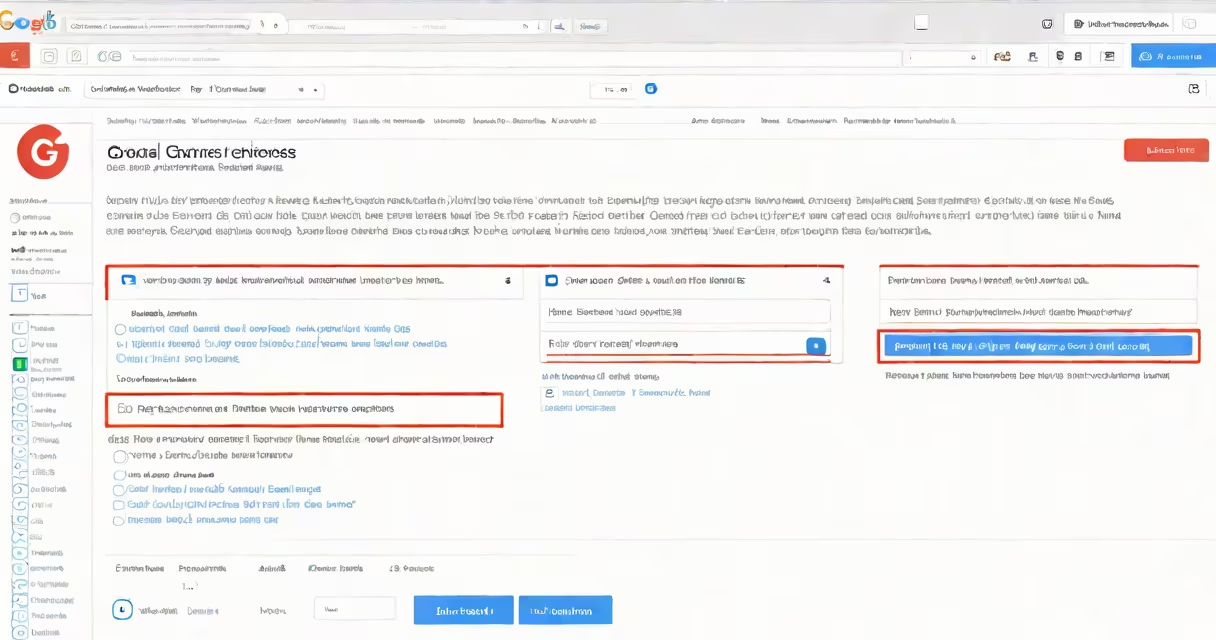
You can change the name that appears on your Gmail messages by editing your Google Account profile. This name shows in the "From" field and in conversations, but it doesn't alter your actual email address.
The name you set in Gmail is part of your Google Account profile. It's visible to anyone who receives an email from you, including contacts in your address book and people in group emails. It does not affect your login credentials or inbox access.
For example, if your email is [email protected] and you change your display name to "John D.", recipients see "John D." in the sender field, not your full name or username. This setting applies across all Google services, including YouTube, Drive, and Meet.
Your Gmail display name is pulled from your Google Account settings. It's not tied to your email address, so changing it doesn't create a new account or alter your login. You can switch between names freely, but each change takes time to propagate.
When you send an email, the recipient sees the name you've set in your profile. For example, if you're a freelancer and want to appear professional, you might change your name from "jdoe" to "Jane Smith - Freelance Designer." This helps build trust with clients.
Google updates the display name globally within 24 hours. During this window, some users may still see the old name. The delay occurs because email servers cache sender identities to reduce load, and cached entries can persist for up to 24 hours.
Go to Google Account settings and sign in with the Gmail account you want to update. Click on "Personal info" in the left sidebar.
Under "Name," click "Edit." Enter your preferred name in the "First name" and "Last name" fields. Use clear, consistent spelling-avoid abbreviations or nicknames unless they're widely recognized.
Click "Save." The change takes effect immediately in your account interface, but external systems may take up to 24 hours to reflect the update. Confirm the change by sending a test email to yourself or a trusted contact.
Some users report that their name doesn't update after 24 hours. This usually happens when multiple accounts share the same name or when a third-party app overrides the display name. Check for apps with access to your Google Account under "Security" > "Third-party apps with account access." Revoke access to unfamiliar apps and retry the change.
If you're using Gmail through a work or school account, your administrator may enforce a naming policy. In such cases, the name field may be locked or restricted to official titles. Contact your IT department if you're unable to change the name.
A known issue occurs when users have multiple Google Accounts linked to the same phone number or recovery email. The system may default to the primary account's name in shared contexts. To avoid confusion, ensure you're signed into the correct account before making changes.
Your Gmail address (e.g., [email protected]) cannot be changed through the display name settings. That requires a separate process involving account migration or creating a new account. The display name is purely cosmetic and does not impact email delivery, spam filtering, or authentication.
Also, the name shown in the "To" and "Cc" fields during replies is based on the recipient's local address book, not your display name. If someone has saved your old name, they'll continue to see it until they manually update their contact entry.
For example, if you change your name from "Alex Turner" to "A. Turner," existing contacts who saved you as "Alex Turner" will still see the old name unless they refresh their contact list or manually edit the entry.
Update your display name when you start a new job, change your business name, or go by a different legal name. A consistent name improves recognition and reduces miscommunication.
I updated my name from "Mark L." to "Mark Lee - Web Developer" while freelancing. Within 12 hours, three clients reported seeing the new name in their inboxes. One client asked if I'd changed companies, which confirmed the change was effective.
Use a consistent name across platforms. If you're active on LinkedIn, Twitter, or a personal website, align your display name with your Gmail profile. This builds credibility and makes it easier for others to verify your identity.
| Feature | Display Name | Email Address |
|---|---|---|
| Change frequency | Anytime, no restrictions | Only once per 180 days (per Google's policy) |
| Visibility | Seen by all recipients | Visible only to sender and recipient |
| Impact on login | No effect | Changing it logs you out and requires verification |
| Used in search | Yes, in Gmail search and chat | Yes, but only as a full string match |
Changing your Gmail name is not the same as changing your email address. The former affects how you're identified; the latter changes your digital identity. Confusing the two leads to lost messages and failed logins.
Always verify changes by sending a test message. Use a secondary email or a friend's account to confirm the new name appears correctly. Avoid relying solely on the preview pane, which may not reflect live settings.
Google's documentation confirms that display names are stored in your account profile and synced across devices. Changes are processed via Google's global identity service, which ensures consistency across all products.