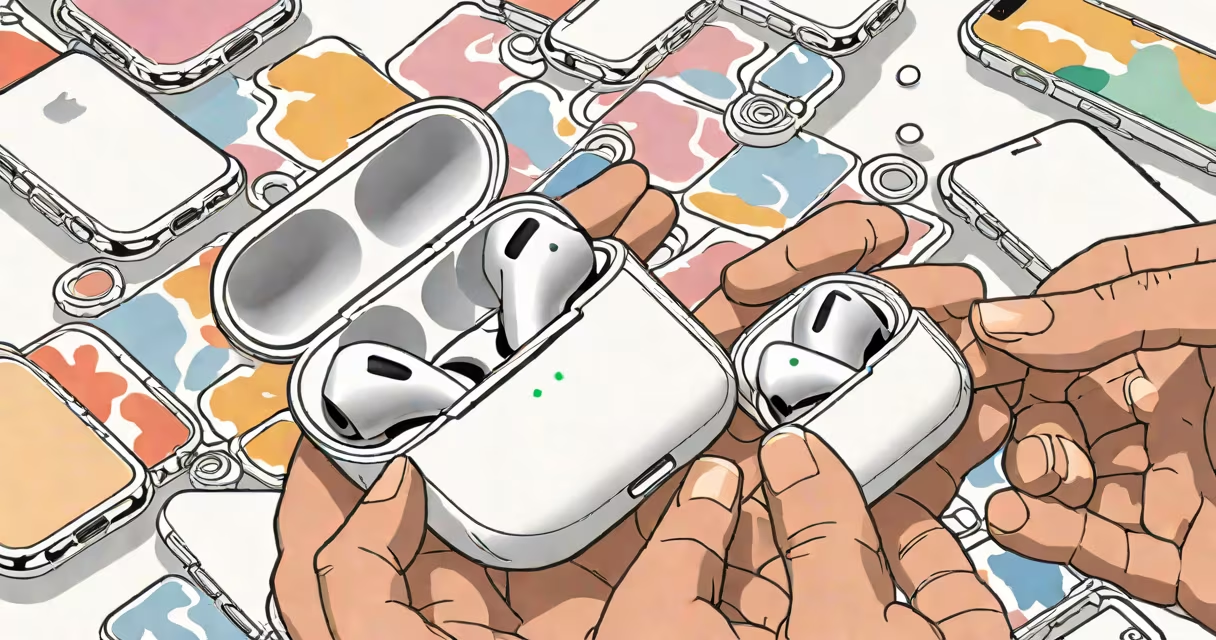
To put AirPods 4 in pairing mode, open the charging case, press and hold the setup button on the back of the case until the status light flashes white. This initiates pairing mode, allowing the earbuds to connect to a new device via Bluetooth.
AirPods 4 use a redesigned charging case with a single setup button located on the back. Unlike previous models, they do not require pressing the button on each earbud. The process begins solely with the case. Once activated, the earbuds enter a discoverable state for up to two minutes, during which they appear in the Bluetooth settings of nearby devices.
Pairing mode is necessary when connecting to a new iPhone, iPad, Mac, or third-party device such as a smart TV or Android tablet. It's also required after resetting the AirPods or if they disconnect unexpectedly. The setup button is recessed and requires firm pressure for one second to register. A flashing white light indicates the device is ready to pair.
When the setup button is pressed, the AirPods 4 initiate a Bluetooth discovery protocol. The status light on the case turns white and blinks rapidly. This signal confirms the earbuds are broadcasting their availability to nearby Bluetooth-enabled devices. The blinking continues for approximately two minutes before automatically deactivating.
During this window, the device you want to pair with must have Bluetooth turned on and be set to discover new devices. On an iPhone, go to Settings > Bluetooth and wait for "AirPods" to appear under "Other Devices." Tap the name to begin pairing. The connection completes when the device displays "Connected" and the AirPods show a confirmation sound.
If the device doesn't detect the AirPods, ensure the case is open and the earbuds are fully seated. A low battery may prevent the status light from flashing. Recharge the case using a USB-C cable for at least 15 seconds before retrying. Apple recommends keeping the case within 3 feet of the device during pairing.
There are three primary pairing situations: initial setup, reconnecting after reset, and switching between devices. Each uses the same physical steps but differs in context and potential complications.
| Use Case | Setup Button Action | Expected Light Behavior | Connection Time |
|---|---|---|---|
| First-time setup | Press and hold for 1 second | Flashes white twice, then steady white | Under 10 seconds |
| After resetting | Press and hold for 1 second | Flashes white continuously | 15-20 seconds |
| Switching between devices | Same as above | Flashes white briefly | 5-10 seconds |
For users who frequently switch between devices, the AirPods 4 support automatic switching between Apple devices signed into the same iCloud account. This feature works only if the devices are within range and Bluetooth is enabled. To force a switch, manually select the AirPods from the Bluetooth menu on the new device.
When connecting to non-Apple devices, such as a Samsung Galaxy phone or a Windows laptop, the AirPods 4 may not appear immediately. Some Android devices require entering the Bluetooth settings and selecting "Add Bluetooth Device" manually. The AirPods 4 do not support Apple's "Hey Siri" wake word on non-Apple systems, though basic playback controls still function.
One frequent error is pressing the setup button too briefly. The system registers only sustained pressure. If the light remains off or flashes amber, the button was not held long enough. Try again with a firm, continuous press for at least one second.
Another issue arises when the earbuds are not properly seated in the case. The internal sensors detect whether the earbuds are present. If the case detects no earbuds, the setup button has no effect. Open the lid, place both earbuds back in their slots, and close the case before retrying.
I've encountered cases where the status light fails to flash despite correct button pressure. In those instances, the issue often lies with the case's internal battery. Recharging the case for five minutes via USB-C usually resolves the problem. If the light still doesn't respond, the case may need service through Apple Support.
A lesser-known detail: the AirPods 4 do not enter pairing mode when the case is closed. The lid must be open, and the earbuds must be detected inside. If the case is closed during the process, the pairing sequence aborts. Always keep the lid open while initiating pairing.
Many assume that pressing the button on the earbuds themselves activates pairing. This is incorrect. The AirPods 4 lack physical buttons on the earbuds. Touch controls exist on the stem, but they do not trigger pairing. The only way to start pairing is through the case's setup button.
Another misconception is that the AirPods 4 can pair with multiple devices simultaneously. They cannot. While they can switch between devices automatically, only one device can be actively connected at a time. Attempting to pair with a second device while already connected causes the first connection to drop.
Some users also mistake the white flash for a successful connection. The flashing white light only indicates that pairing mode is active. The actual connection occurs when the device selects "AirPods" from the list. A solid white light after pairing means the earbuds are connected and ready to use.
Begin by removing the AirPods 4 from the case and placing them in your ears. Open the case and press the setup button on the back for one second. The status light flashes white. On the new iPhone, go to Settings > Bluetooth and wait for "AirPods" to appear. Tap the name. The screen shows "Connecting..." and then "Connected." A chime plays in the earbuds, confirming the link.
After setup, the AirPods 4 appear in the Bluetooth menu of all Apple devices signed into the same iCloud account. They automatically connect when opened near a previously paired device. This smooth integration is unique to Apple's system and does not apply to third-party devices.
If the iPhone does not detect the AirPods, try restarting the phone or resetting the network settings. As a last resort, go to Settings > General > Reset > Reset Network Settings. This clears cached Bluetooth profiles and allows a fresh pairing attempt.
Understanding how to put AirPods 4 in pairing mode prevents frustration during setup. The process is straightforward but relies on precise timing and correct hardware interaction. For users managing multiple audio devices, knowing the limits of simultaneous connections avoids confusion.