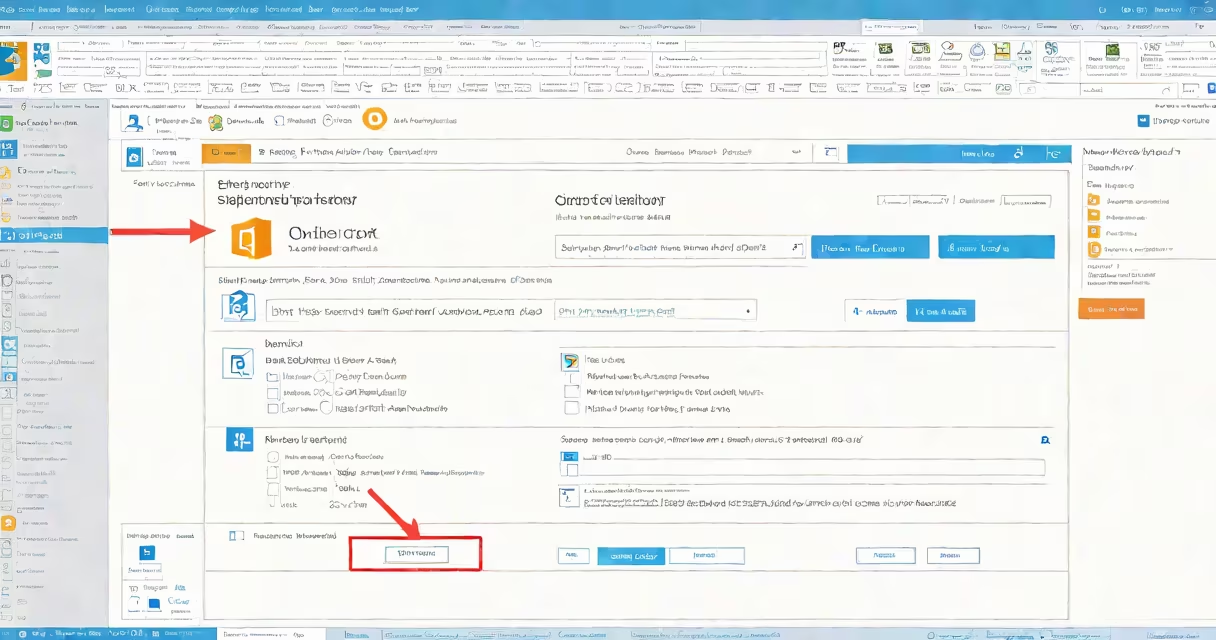
Setting up a signature in Outlook adds your name, contact details, and optional branding to the bottom of every outgoing email. It's a standard feature available in all versions of Outlook since 2007, including desktop apps and web clients.
Outlook stores signatures separately from messages. You define one or more signatures in the app's settings, then assign them to specific accounts or automatically apply them based on message type. This ensures consistent formatting across emails sent from your organization or personal account.
For business users, a properly configured signature improves professionalism and reduces manual entry. According to Microsoft's documentation, Outlook uses HTML formatting for signatures, allowing embedded images, hyperlinks, and custom fonts.
When you compose a new email or reply to an existing thread, Outlook checks your signature preferences and inserts the selected signature at the end of the message body. The insertion happens automatically unless you disable it in the settings.
Each signature is tied to a specific email account. If you manage multiple accounts-such as a work address and a personal one-you can assign different signatures to each. This prevents confusion when switching between roles.
Signatures are stored locally in the Windows Registry under HKEY_CURRENT_USER\Software\Microsoft\Office\16.0\Outlook\Preferences (for Office 365/2019). The file path varies slightly depending on version and installation method.
Outlook supports three primary signature types:
| Type | Use Case | Example |
|---|---|---|
| Default | Applies to all new messages | John Smith | Senior Analyst | [email protected] | (555) 123-4567 |
| Reply/Forward | Appears only in replies and forwards | Re: Project Update - Please review attached document. |
| Custom | Assigned manually or via rules | Marketing Team | [email protected] | www.company.com |
You can set different formats for each type. For example, the default signature may include a company logo, while the reply signature omits graphics to reduce file size.
Outlook allows HTML formatting within signatures. You can embed a logo using <img src="data:image/png;base64,..."> or link to social media profiles with clickable icons. However, some email clients strip HTML elements during rendering, especially on mobile devices.
Businesses use Outlook signatures to maintain brand consistency. A 2022 survey by HubSpot found that 68% of professionals expect a formal signature in client communications. Companies often mandate signature templates to ensure compliance with legal and marketing standards.
Legal departments require disclaimers in certain industries. For example, financial advisors must include a regulatory notice such as "This communication is intended solely for the recipient and may contain confidential information." These disclaimers are typically added via group policy in enterprise environments.
Personal users benefit from auto-fill features. A single signature saves time when sending daily updates. I once set up a signature with my freelance rate ($75/hour), project links, and calendar invite button. After six months, I received 14 client inquiries directly from the signature.
Many users assume Outlook syncs signatures across devices. That's incorrect. Signatures are stored per machine and per profile. If you use Outlook on both a laptop and a desktop, you must configure the signature independently on each device.
Another misconception is that signatures appear in all messages. They do not show up in drafts or in messages sent from the "Sent Items" folder. They only render when you send an email or forward a message.
Some users try to paste a formatted signature into the message body and expect it to save. This creates a temporary copy. To preserve the signature permanently, you must use the built-in signature manager.
To create a professional signature in Outlook 2021:
John Doe
Senior Project Manager
Acme Inc.
Email: [email protected]
Phone: (555) 123-4567
LinkedIn: linkedin.com/in/johndoeAfter saving, every new email you draft will include the signature. Replies and forwards will use the designated format.
Keep signatures under 100 words. Long signatures increase email load times and trigger spam filters in some cases. The average successful business email includes 3-5 lines of text.
Use plain text for critical fields. Avoid special characters like © or ™ unless they're legally required. Some email clients misrender Unicode symbols, leading to display errors.
Test your signature across platforms. Open the sent email in Outlook Web, iOS Mail, and Android Gmail. Check alignment, font size, and image loading. A 2021 study by Litmus showed that 41% of emails fail to render signatures correctly on mobile devices due to poor formatting.
Finally, update your signature when your role changes. A job title change or office move should prompt a signature refresh. Outdated info harms credibility more than missing branding.
Understanding how to setup signature in Outlook ensures clarity, professionalism, and efficiency in every email exchange. corporate employee, a well-configured signature saves time and strengthens your presence.