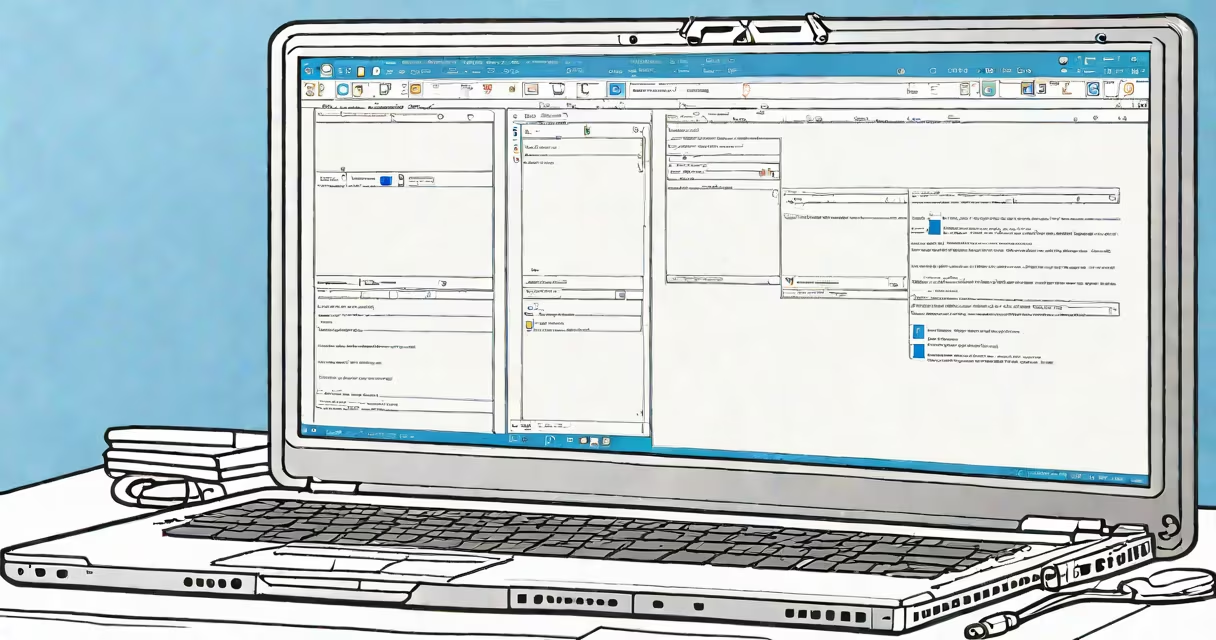
A virtual PC for free is a software-based simulation of a physical computer that runs an operating system within your current device. It allows you to install and use a different OS-like Windows, Linux, or macOS-on a Mac, Windows, or Linux machine without altering your primary system.
Virtual PCs work by creating a virtual environment that mimics hardware components such as CPU, RAM, storage, and graphics. This enables the guest OS to boot and operate as if it were installed on actual hardware. The host machine manages resources through a hypervisor layer, which allocates processing power, memory, and disk space dynamically.
Popular free tools include Oracle's VirtualBox, VMware Workstation Player (free for personal use), and QEMU with KVM. These platforms support most common operating systems and allow users to create isolated environments for testing, development, or running legacy applications.
When you launch a virtual PC for free, the software creates a virtual hard drive file (usually a .vdi, .vmdk, or .qcow2 file) that acts as the storage for the guest OS. You then assign a portion of your physical RAM and CPU cores to the virtual machine. The software emulates network cards, USB ports, and display drivers so the guest OS sees a complete system.
For example, installing Windows 10 on a MacBook using VirtualBox requires downloading the Windows ISO file, allocating 4 GB of RAM and 60 GB of disk space, and assigning a virtual graphics adapter. Once configured, the virtual machine boots into the Windows installer, just as a physical PC would.
Resource allocation is critical. Running multiple VMs simultaneously can slow down your host system. A typical setup uses 2-4 GB of RAM and 2 CPU cores per VM. Most modern laptops handle one lightweight VM well, but older machines may struggle with high-end OSes like Windows 10 Pro.
Several open-source and freeware solutions offer full virtualization capabilities. The following table compares leading options based on compatibility, ease of use, and performance.
| Tool | OS Support | Free For | Best For |
|---|---|---|---|
| VirtualBox | Windows, macOS, Linux | Personal, educational use | Beginners, cross-platform testing |
| VMware Workstation Player | Windows, Linux | Non-commercial use | Stable performance, enterprise-grade features |
| QEMU + KVM (Linux) | Linux, Windows guests | Open source, no restrictions | High-performance workloads, developers |
VirtualBox is the most accessible entry point. It offers a graphical interface, supports snapshots (save the state of a VM at any time), and integrates with guest additions to improve display quality and file sharing. According to Oracle's documentation, VirtualBox version 7.1 supports UEFI firmware and secure boot for Windows 11 installations.
VMware Workstation Player provides better integration with Windows hosts and faster graphics rendering. It includes a built-in tool for cloning VMs, useful when setting up multiple test environments. However, it lacks advanced networking features available in the paid version.
QEMU with KVM is the most useful option for Linux users. It leverages hardware virtualization extensions (Intel VT-x or AMD-V) to deliver near-native performance. A benchmark from Phoronix in 2023 showed QEMU/KVM outperforming VirtualBox by 30% in CPU-intensive tasks.
Many assume that a virtual PC for free is identical to a physical machine. That's not true. While the guest OS behaves similarly, performance depends heavily on host hardware. A 2022 study by the University of California, Berkeley, found that VMs typically run at 70-85% of native speed due to overhead from emulation layers.
Another misunderstanding is that all free virtualization tools are equally capable. Some claim to support "full hardware acceleration" but require specific CPU models and BIOS settings. Intel VT-x and AMD-V must be enabled in the system's BIOS/UEFI settings. Without them, the VM may fail to start or experience severe lag.
I once tried to run a Windows 10 VM on a 2015 MacBook Air with only 4 GB of RAM. Even with VirtualBox and 2 GB allocated, the system froze during driver installation. Enabling hardware virtualization in the BIOS resolved the issue-but the machine still couldn't handle video editing inside the VM. Performance limits are real and often underestimated.
Using a virtual PC for free enables practical workflows across education, IT, and hobbyist projects. Students can practice Linux commands without risking their main system. Developers test software across OS versions. IT professionals simulate network failures or malware behavior safely.
For example, a web developer in Austin used VirtualBox to replicate a production server environment. They installed Ubuntu Server, configured Apache and MySQL, and deployed a PHP application. By taking a snapshot before each change, they could roll back instantly if something broke. This saved over 12 hours of troubleshooting time during a live project.
Another use case involves running old software. A teacher in Chicago needed to run a 2003-era math tutoring program that wouldn't install on her modern Windows 10 laptop. She created a Windows XP VM, installed the software, and connected it to a USB printer via the VM's USB passthrough feature. The app ran perfectly.
These scenarios show that a virtual PC for free isn't just a tech curiosity-it's a functional tool for problem-solving, learning, and experimentation.
To begin, download VirtualBox from the official site. Install it on your host OS. Then, create a new virtual machine:
Once installed, install Guest Additions from the Devices menu to enable shared folders, clipboard sync, and better screen resolution.
With proper configuration, a virtual PC for free becomes a reliable extension of your computing power-safe, flexible, and entirely under your control.