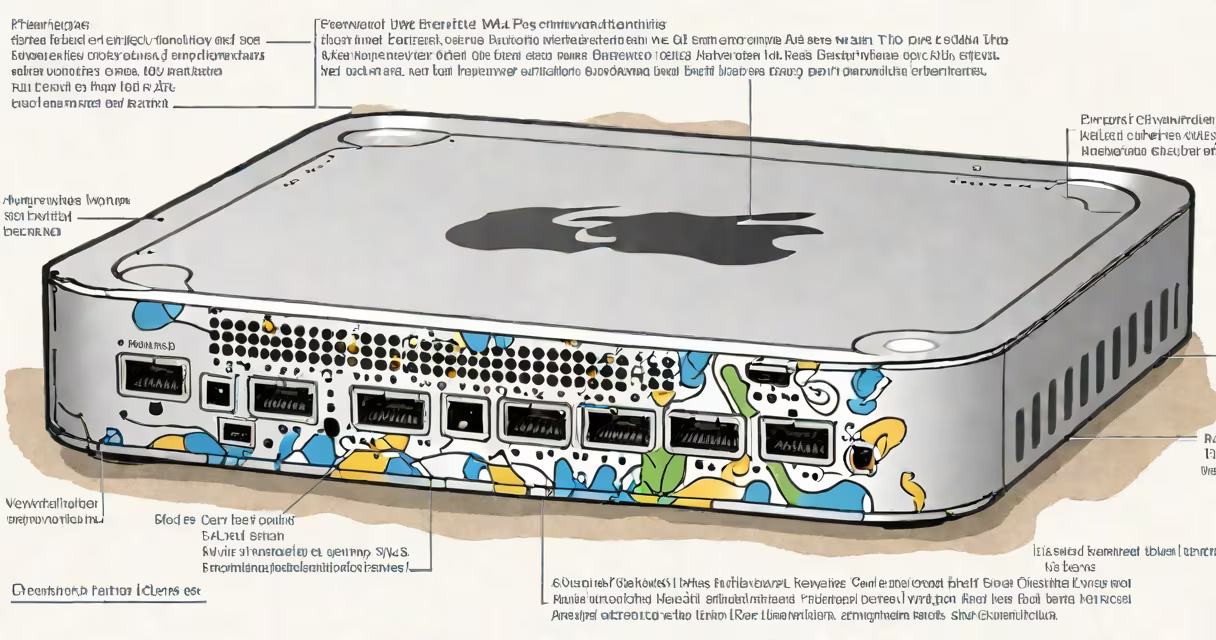
The Mac Mini features six physical connection points: two Thunderbolt 4 ports, two USB-C ports, one HDMI output, one 3.5mm audio jack, and one Gigabit Ethernet port. These ports support external displays, storage, networking, audio devices, and high-speed peripherals.
Each port serves a distinct function based on its standard and bandwidth. Thunderbolt 4 supports data transfer up to 40 Gbps, video output to dual 4K displays, and power delivery. USB-C ports offer 10 Gbps data speeds and charge connected devices. The HDMI port outputs video to monitors or TVs at up to 4K resolution at 60Hz. The audio jack accepts standard headphones or microphones. The Ethernet port enables wired internet connections at 1 Gbps.
Thunderbolt 4 and USB-C share the same physical connector but differ in capabilities. Thunderbolt 4 supports daisy-chaining multiple devices and provides higher power delivery (up to 100W). USB-C ports on the Mac Mini do not support daisy-chaining or external GPU passthrough unless explicitly designed for it.
Here's a breakdown of each port type and its maximum performance:
| Port Type | Max Data Speed | Video Output | Power Delivery | Use Cases |
|---|---|---|---|---|
| Thunderbolt 4 (x2) | 40 Gbps | Supports dual 4K displays or one 6K display | Up to 100W | External SSDs, high-end monitors, docking stations |
| USB-C (x2) | 10 Gbps | None (unless adapted) | Up to 15W | Charging phones, connecting mice/keyboards, USB drives |
| HDMI | N/A | 4K@60Hz, HDR (via HDMI 2.0) | None | Connecting to TVs or projectors |
| 3.5mm Audio Jack | N/A | None | None | Headphones, microphones, audio interfaces |
| Gigabit Ethernet | 1 Gbps | None | None | Stable internet, network-attached storage (NAS) |
Thunderbolt 4 ports are backward compatible with USB 3.2 and DisplayPort. A single Thunderbolt cable can carry data, video, and power simultaneously. For example, connecting a 4K monitor via Thunderbolt 4 to the Mac Mini allows the system to drive the display while charging a laptop plugged into the same port.
Many users assume the USB-C ports on the Mac Mini support high-speed external GPUs or daisy-chaining. This is incorrect. Only Thunderbolt 4 ports support daisy-chaining and external GPU passthrough. USB-C ports on the Mac Mini are limited to peripheral connectivity and charging.
Another misconception is that the HDMI port supports 8K output. The Mac Mini's HDMI port is HDMI 2.0 compliant, which maxes out at 4K resolution at 60Hz. To drive 8K displays, users need a Thunderbolt-to-DisplayPort adapter or a dedicated graphics card, neither of which the Mac Mini supports natively.
A lesser-known fact: the Gigabit Ethernet port on the Mac Mini does not support 2.5 Gbps or 10 Gbps speeds. It is strictly 1 Gbps. Users upgrading from older models may expect faster wired speeds, but the hardware hasn't changed since the 2018 model.
Consider a home office setup using a 2023 Mac Mini. You connect a 4K monitor via Thunderbolt 4 to the left port. The monitor draws power and video through the same cable. On the right Thunderbolt 4 port, you attach a Thunderbolt dock that powers a second monitor, connects to a 1TB external SSD, and adds a USB-A hub for a keyboard and mouse. The dock uses the Thunderbolt 4 port's full bandwidth.
On the rear panel, you plug a 3.5mm headset into the audio jack for calls. A Cat6 Ethernet cable runs from the router to the Gigabit port for stable internet during video meetings. The two USB-C ports remain free for charging a phone or connecting a portable scanner.
This configuration achieves 4K video output, 1 Gbps internet, and fast data access-all without a single USB-A or legacy port.
For external displays, use Thunderbolt 4 or HDMI. Thunderbolt 4 offers better performance and flexibility. For storage, Thunderbolt 4 delivers faster read/write speeds than USB-C. For audio, the 3.5mm jack works with most headphones and mics. For networking, Gigabit Ethernet reduces latency compared to Wi-Fi 6.
If you're setting up a media center, consider connecting a 4K TV via HDMI and using the Thunderbolt 4 port to run a high-performance external drive for video editing. The Mac Mini handles 4K ProRes playback smoothly when connected via Thunderbolt.
I've used a Mac Mini in a small studio for live audio recording. By plugging a USB audio interface into a USB-C port and connecting headphones via the 3.5mm jack, I achieved low-latency monitoring. The system handled 24-bit/96kHz audio streams without dropouts.