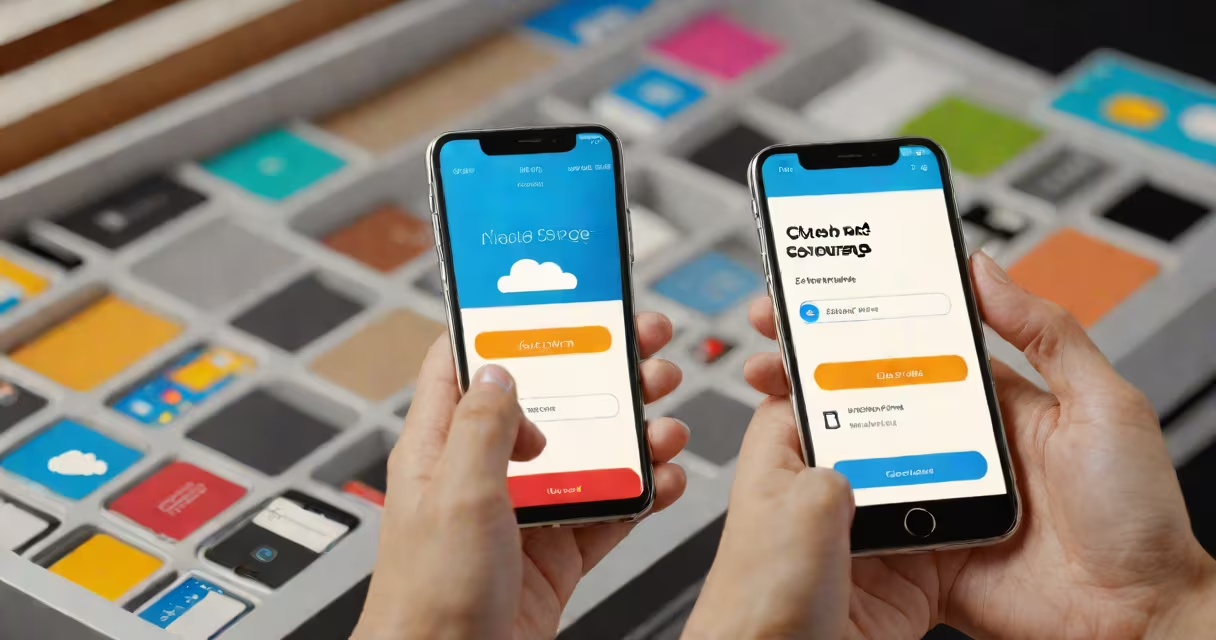
Your cloud storage is not a single physical folder on your phone-it's a collection of apps and system services that sync data to remote servers. It appears in your app drawer, file manager, or within device settings depending on the provider. Access depends on which cloud service you're using.
Cloud storage apps are installed separately from your phone's internal memory. They don't live in a single folder like photos or downloads. Instead, they appear as standalone apps or integrated features. For example, Google Drive shows up as a dedicated app on Android devices. iCloud is built into iOS under Settings and the Photos app. T-Mobile Cloud Storage runs as a background service and appears in the app list.
Most cloud storage systems don't store files directly in your phone's local file system unless you manually download them. Files stay on remote servers until you choose to retrieve them. This keeps your phone's storage free while maintaining access from any device.
When you save a file to cloud storage, it uploads to a remote server via Wi-Fi or cellular data. The app on your phone then displays a synced version of that file. Changes made on one device automatically update across all others linked to the same account.
For example, saving a document to Google Drive on your phone triggers a sync process. The file is sent to Google's servers, verified, and then mirrored on your laptop and tablet. You can open the same file from any device with internet access and the correct login credentials.
Sync happens in the background. On Android, the Google Play Services structure handles most sync operations. On iOS, iCloud uses the Background App Refresh feature. Both operate silently unless you manually trigger a sync or disable auto-sync in settings.
Each major cloud provider places its app in a different location. Here's how to find them:
| Provider | App Name | Location on Android | Location on iPhone |
|---|---|---|---|
| Google Drive | Google Drive | App drawer or search bar | Home screen or Spotlight Search |
| iCloud | iCloud | Settings > [Your Name] > iCloud | Settings > [Your Name] > iCloud |
| T-Mobile Cloud Storage | T-Mobile Cloud | App drawer or search | App Library or search |
| OneDrive | OneDrive | App drawer or search | Home screen or Spotlight |
| Terabox | Terabox | App drawer or search | Home screen or Spotlight |
On Android, open the app drawer and look for the icon with a blue "G" or a cloud symbol. On iPhone, swipe down from the middle of the home screen to open Spotlight Search and type the app name. If the app isn't listed, check your device's "Downloaded" section in the App Store or Google Play.
Some services integrate deeply into the operating system. iCloud Photos, for instance, doesn't require a separate app-you see synced images in the Photos app. Similarly, Google's integration with Android allows you to save files directly to Google Drive from any app that supports sharing.
If you can't find your cloud storage app, check for common issues. First, ensure you've signed in with the correct account. A forgotten password or inactive session can hide the app entirely.
Second, verify that the app is installed. Some carriers pre-install cloud services. T-Mobile users may have T-Mobile Cloud Storage enabled by default. If you don't see it, go to Settings > Apps > See all apps and search for "T-Mobile Cloud."
A third issue is permission restrictions. On Android, some apps require access to storage, camera, or network. If you denied permissions during setup, the app may not function properly. Go to Settings > Apps > [App Name] > Permissions and enable required access.
As a test, try opening the app through your web browser. Visit drive.google.com, icloud.com, or terabox.com from your phone's browser. Log in with the same credentials. If the web version works, the problem is likely with the app installation, not your account.
I recently helped a user locate their Terabox files after switching phones. They had saved 120 photos and 47 documents to Terabox but couldn't find them on their new Samsung Galaxy S23.
The app wasn't in the app drawer. I checked the Google Play Store and found Terabox listed under "Recently Installed." After reinstalling, I opened the app and logged in with their email and password. The file list appeared instantly.
They had previously used "Auto Sync" mode, which only uploads files when connected to Wi-Fi. Since the new phone was on a different network, syncing hadn't triggered. Enabling manual sync in the app settings resolved the delay.
This case shows that cloud storage visibility depends on both app availability and sync settings-not just the presence of the app itself.
Many people think cloud storage lives in a specific folder like "/cloud" or "/MyCloud." That's not how it works. There is no universal folder called "cloud storage" on your phone. The term refers to the concept of remote data backup, not a physical directory.
Another mistake is assuming that files stored in the cloud are automatically backed up to your phone. They aren't. Unless you manually download a file, it remains on the cloud server. Deleting a file from your phone doesn't remove it from the cloud unless you also delete it from the web interface.
Also, cloud storage isn't the same as device storage. Your phone's internal memory holds apps, photos, and system files. Cloud storage holds copies of those files-often with better redundancy and longer retention.
According to Apple's support documentation, iCloud backups are encrypted and stored on Apple's servers. Data is retained for 30 days after deletion, but only if you haven't turned off iCloud Backup. Google Drive retains deleted files in the Trash for 30 days before permanent removal.
If you've located your cloud storage app, open it and sign in. Once logged in, browse your folders. Most apps show recent files first. Tap a file to view or download it.
To manage space, check your storage usage. On Android, go to Settings > Storage > Cloud Storage. On iPhone, go to Settings > General > iPhone Storage and tap "Show All Apps." Scroll down to see how much space each cloud app uses.
If you're using multiple services, consider consolidating files. For example, move all work documents from Terabox to Google Drive if you use Google Workspace. This reduces clutter and simplifies access.