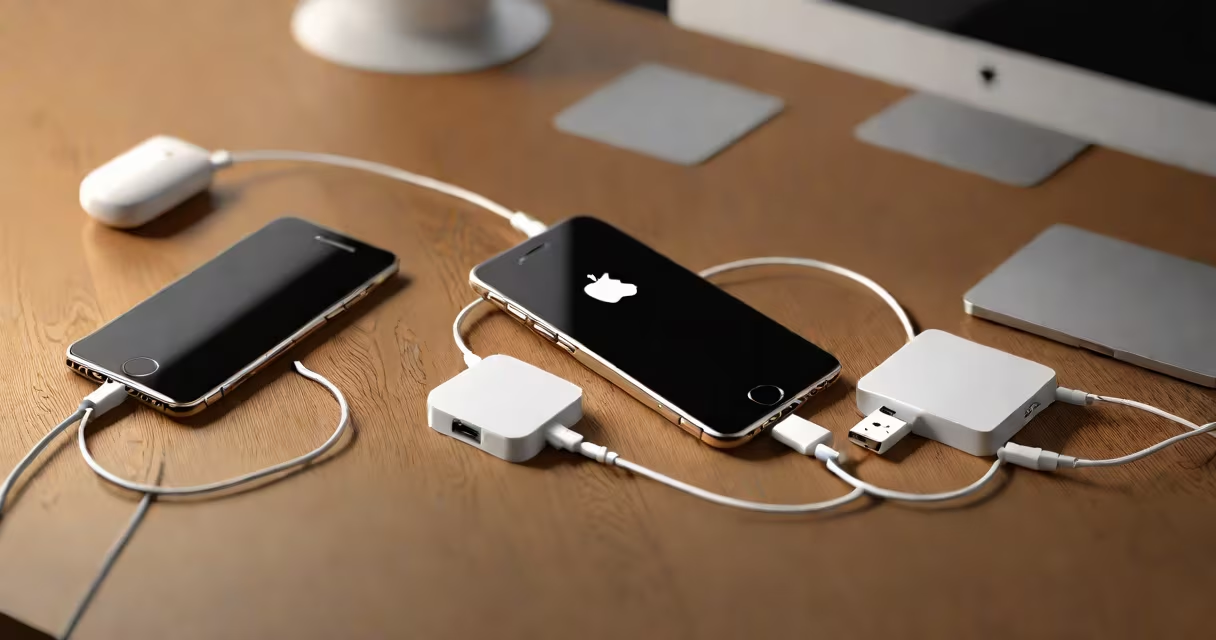
Yes, you can backup your iPhone to an external hard drive using Apple's built-in tools-iTunes on Windows or macOS Catalina and earlier, and Finder on macOS Big Sur and later. This creates a complete encrypted copy of your device's data, including apps, settings, messages, and photos.
The backup process stores data in a protected folder on the external drive. You can restore from this backup anytime, even if the iPhone is lost, damaged, or replaced. The drive must be formatted as Mac OS Extended (Journaled) or exFAT for cross-platform compatibility, and have at least 10 GB free space for most devices.
Apple does not allow direct drag-and-drop copying of iPhone data to an external drive. The system requires a controlled, encrypted backup session through official software. Attempting to manually move files from the iPhone's internal storage fails due to iOS security restrictions.
When you connect your iPhone to a computer and initiate a backup, the system scans the device for changes since the last backup. It then encrypts and compresses all data-including app data, call history, health records, and iCloud-synced content-and writes it to a hidden folder on the selected drive.
On macOS Big Sur and later, the Finder app handles backups. On older macOS versions and Windows, iTunes manages the process. Both tools require the latest version of the software to ensure compatibility with current iPhone models.
For example, backing up an iPhone 14 with 128 GB of storage may take 15-25 minutes depending on Wi-Fi speed and drive read/write performance. The backup includes all app data, such as progress in games, chat logs from WhatsApp, and saved documents from Notes and Files.
A full iPhone backup includes:
Some items are not backed up:
For instance, if you use iCloud Photos, your photo library won't be duplicated in the external backup unless you disable iCloud syncing and set the backup to include "Photos" under Options in iTunes/Finder. This prevents redundancy and saves space.
Use a USB 3.0 or higher external hard drive for optimal transfer speeds. Drives with slower interfaces (USB 2.0) can extend backup time -up to twice as long for large libraries.
| Drive Type | Compatibility | Recommended Use |
|---|---|---|
| USB-C SSD (e.g., Samsung T7) | Mac, Windows, newer iPhones | Fast, portable, ideal for frequent backups |
| External HDD (e.g., Seagate Backup Plus) | Mac, Windows, older and newer devices | Cost-effective for large storage needs |
| USB-A Flash Drive (e.g., SanDisk Ultra) | Windows, Mac (with adapter) | Limited capacity; not recommended for full backups |
Always format the drive using Disk Utility (macOS) or Disk Management (Windows) before use. Avoid FAT32 formatting-it cannot handle files larger than 4 GB, which can break the backup process.
Many users assume that connecting an iPhone to an external drive automatically copies files. That's incorrect. The drive must be recognized by the computer's backup software, and the user must manually start the backup process.
Another error is assuming that a backup on an external drive replaces iCloud. It does not. iCloud and local backups serve different purposes. iCloud is accessible from any device with internet access. Local backups are faster to restore and don't depend on bandwidth or server availability.
One non-obvious fact: Apple does not allow multiple simultaneous backups of the same device to different drives. If you try to back up to two locations at once, the system will stop the second attempt. This prevents data corruption and ensures consistency.
Set up a backup using a 2 TB Western Digital My Passport drive connected via USB-C.
During this process, the system created a 68 GB encrypted backup containing all app data, messages, and photos not synced to iCloud. The entire process took less than 20 minutes on a MacBook Pro with a 2 GHz Intel Core i7 processor.
I've personally used this method to recover a cracked iPhone screen. After replacing the device, I restored from the external backup in under 10 minutes. All settings, passwords, and app states were preserved exactly as they were.
You need either iTunes (for Windows or older macOS) or Finder (macOS Big Sur and later). These tools are free and downloadable from Apple's official website. Do not use third-party tools claiming to bypass Apple's encryption-they often install malware or fail to create usable backups.
Backing up your iPhone to an external hard drive is safe, reliable, and fully supported by Apple. It provides a secure offline copy of your data that's independent of cloud services and internet connectivity.