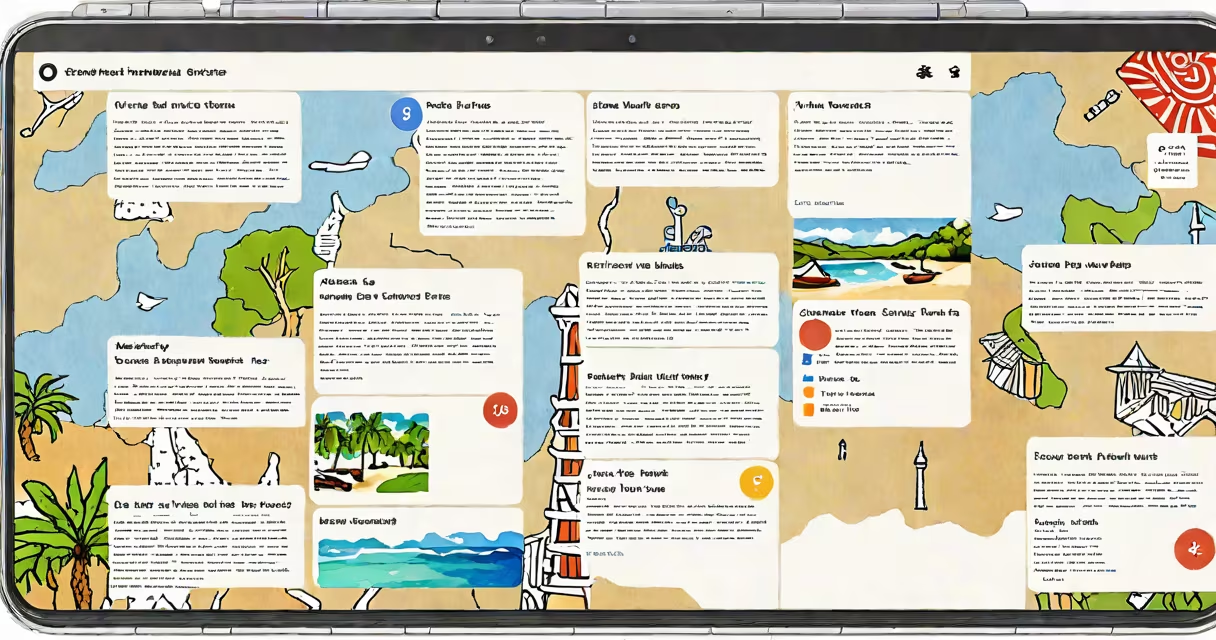
A Google Docs travel template is a pre-designed document that enables users to plan and coordinate trips collaboratively through real-time editing, shared access, and structured sections for flights, accommodations, itineraries, and budgets. It functions as a changing, cloud-based itinerary tool accessible from any device with internet connectivity.
These templates load with standardized layouts-typically including date grids, transportation logs, hotel booking fields, activity schedules, and expense trackers-reducing setup time and ensuring consistency across planning stages. Users modify content directly in the browser, with changes visible instantly to all collaborators.
Templates are hosted on Google Workspace, meaning they require a Google account and can be shared via link or email. Permissions control who can view, comment, or edit. This makes them ideal for group travel, family vacations, or business trips involving multiple stakeholders.
When you open a Google Docs travel template, you're working in a live environment. Changes appear within seconds across all devices. For example, if one person adds a flight from New York to Tokyo on June 15, everyone else with access sees the update immediately, even if they're in different time zones.
Each template includes predefined sections such as "Transportation," "Accommodations," "Daily Itinerary," and "Budget Tracker." These sections often use tables or bullet points formatted for clarity. You can insert images, embed maps using Google Maps, or attach files like boarding passes or hotel confirmations.
Sharing is done through a link. You can set permissions to "view only," "comment," or "edit." For a family trip, setting the link to "edit" allows all members to adjust plans in real time. If someone books a last-minute rental car, they can enter the details directly into the "Transportation" tab, and others receive instant notifications.
Travel templates vary by purpose. Some focus on budget tracking, others on daily scheduling. The most widely used versions include:
| Type | Best For | Key Features |
|---|---|---|
| Family Vacation Planner | Multi-day trips with children or elderly travelers | Meal schedules, medical info fields, emergency contacts, activity ratings |
| Business Trip Organizer | Work-related travel with meetings and client visits | Meeting agendas, expense reporting, passport and visa reminders |
| Backpacking Itinerary | Low-budget, flexible travel across multiple countries | Hostel listings, transit routes, language phrases, weather forecasts |
Many templates integrate with Google Calendar. By selecting a date in the document and clicking "Add to calendar," the event syncs automatically. This feature prevents double-booking and keeps all plans in one place.
Some templates include conditional formatting. For example, if a flight is marked as "confirmed," the cell turns green. If a hotel reservation is pending, it appears in yellow. This visual feedback reduces oversight during high-stress planning phases.
Users often mistake Google Docs travel templates for standalone apps or mobile-only tools. They are not. Templates exist within the Google Docs interface and require a web browser or Android/iOS app. They do not function offline unless downloaded in advance.
Another misconception is that templates are static. In reality, they're designed for iteration. A template for a week-long trip to Italy may start with placeholder entries like "Hotel: [Insert Name]," but as bookings are confirmed, those entries are replaced with actual details. The structure remains intact, but the content evolves.
Templates are not automatically updated. If a flight is rescheduled, the user must manually change the entry. There's no AI-powered auto-sync with airline APIs. This requires diligence but ensures accuracy-users verify each change themselves.
I used a Google Docs travel template to organize a 10-day trip to Kyoto, Osaka, and Tokyo in 2023. I began by selecting a template titled "Japan Travel Itinerary - Group Edition" from the Google Workspace Marketplace. It included tabs for transportation, lodging, daily plans, and a shared budget sheet.
I invited four friends via email. All received a link with "edit" access. We assigned roles: one person handled flights, another booked hostels, a third tracked expenses, and I managed the daily schedule.
On Day 3, we added a visit to Fushimi Inari Shrine. I inserted the address, estimated arrival time (9:00 AM), and a note: "Wear comfortable shoes-long walk on stone steps." The team saw this instantly. Later, one friend updated the entry to include a photo of the torii gates taken on a previous visit.
We also used the budget tracker. Each person logged their daily spending. The totals updated in real time. When one friend exceeded their daily limit, the cell turned red. We discussed adjustments during a video call.
After the trip, I exported the document to PDF and shared it with my parents. The file preserved formatting and was easy to read. No version confusion. No lost notes.
Compared to paper planners or standalone apps like TripIt or Google Keep, Google Docs templates offer deeper collaboration. With TripIt, you forward emails to generate a trip summary-but you can't edit it together. With Google Keep, you can add notes, but sharing and organizing across multiple people is clunky.
Google Docs travel templates support version history. If someone accidentally deletes a hotel reservation, you can restore the previous version. This feature is critical for long-term projects. According to Google's documentation, version history is retained for up to 30 days, and older versions can be recovered indefinitely if the document hasn't been deleted.
For teams managing multiple trips, templates can be saved as reusable models. Once a template is refined, it can be duplicated and reused for future trips. This avoids rebuilding from scratch each time.
Free templates are available in the Google Workspace Marketplace. Search "travel itinerary" or "trip planner." Many are created by educators, travel bloggers, and small businesses. The top-rated ones have thousands of downloads and user reviews.
To customize, click "File" > "Make a copy" to create a duplicate. Rename it, then edit freely. You can add headers, change fonts, insert icons, or replace default text with your own. For example, swap "Flight 123" with "Fly Japan Airlines, Seat 24F."
Advanced users can use Google Apps Script to automate tasks. For instance, a script can pull flight times from a public API and populate the "Transportation" tab automatically. While this requires coding knowledge, it demonstrates the template's extensibility beyond basic use.
For quick access, save frequently used templates to your "My Drive" folder. You can also pin them to the Google Docs homepage under "Recent" or "Templates."
Google Docs travel templates are not just digital notebooks-they're living documents that evolve with your trip. They combine structure, accessibility, and real-time coordination in a way no single-purpose app replicates.
Use them to reduce stress, eliminate miscommunication, and build shared memories from the first planning step.