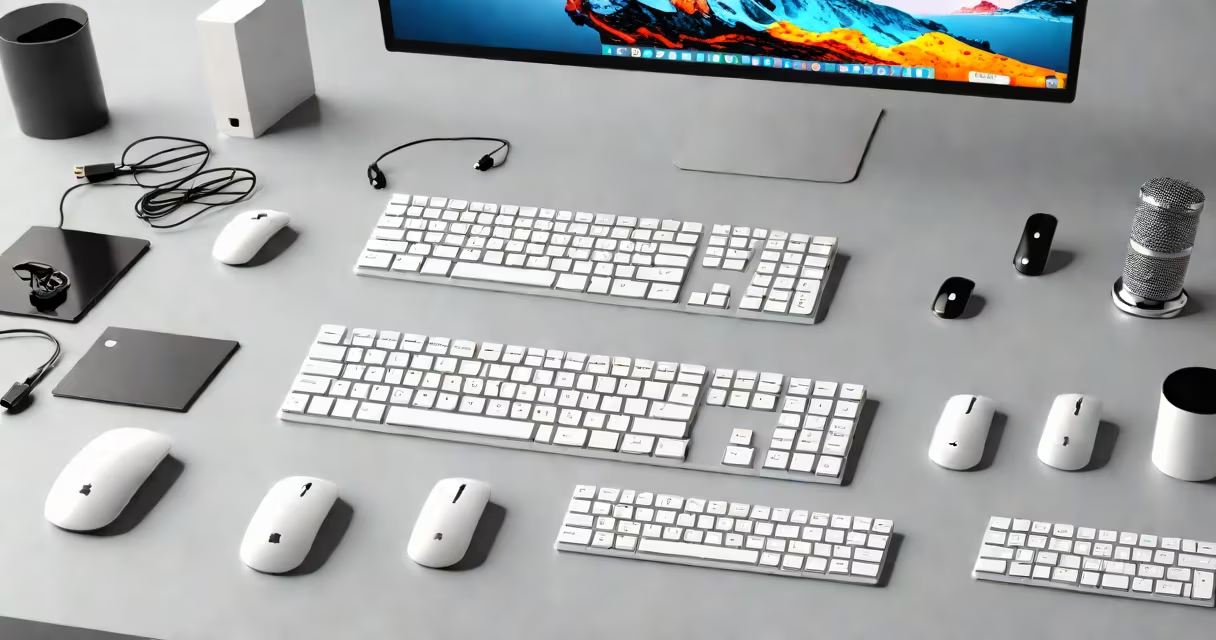
Input devices are hardware components that send data or commands to a computer system. They enable users to interact with software by converting physical actions into digital signals. Common types include keyboards, mice, touchscreens, webcams, microphones, and scanners.
Each input device translates human intent into machine-readable form. A keyboard converts keystrokes into ASCII codes. A mouse sends movement and click events via USB or wireless protocols. Touchscreens interpret finger touches using capacitive sensors. Scanners digitize physical documents using optical imaging. These tools bridge the gap between human actions and digital processing.
Understanding input devices is essential for anyone working with computers. They define how users access, control, and communicate with software. The choice of device affects efficiency, accessibility, and user experience. For example, a graphic designer relies on a graphics tablet for precision, while a call center agent depends on a headset microphone for clear audio transmission.
Every input device operates through a consistent process: physical action → signal conversion → data transmission → system response. When a key is pressed on a keyboard, a mechanical switch closes, sending an electrical pulse. The keyboard's controller translates this into a scan code, which the operating system interprets as a specific character.
Mice use optical or laser sensors to track surface movement. The sensor captures thousands of images per second, calculates displacement, and sends delta coordinates to the CPU. This data updates the cursor position on screen in real time. Modern mice often include additional buttons and scroll wheels, each mapped to specific functions by the OS or application.
Touchscreens rely on capacitive sensing. When a finger touches the screen, it alters the local electric field. The controller measures changes at multiple points across the grid and determines the touch location. This enables multi-touch gestures like pinch-to-zoom and swipe navigation. Capacitive screens require conductive materials-like skin or stylus tips-to register input.
Input devices fall into several functional categories based on how they capture user input. The most widely used types include pointing devices, text entry tools, audio/video capture devices, and document scanning tools.
| Type | Function | Examples | Typical Use Case |
|---|---|---|---|
| Pointing Device | Controls cursor or pointer | Mouse, trackpad, joystick | Going through GUIs, gaming, design work |
| Text Entry | Enters alphanumeric characters | Keyboard, virtual keyboard | Writing, coding, data entry |
| Audio Capture | Records sound input | Microphone, headset mic | Voice calls, voice assistants, podcast recording |
| Video Capture | Records visual input | Webcam, digital camera | Video conferencing, surveillance, photo editing |
| Document Scanner | Digitalizes paper documents | Flatbed scanner, handheld scanner | Archiving records, processing invoices |
Some devices serve dual purposes. A touchscreen combines input and display functions. A smartwatch uses a combination of touch, gesture, and voice input. A graphics tablet allows drawing with pressure sensitivity, offering precise control for artists and designers.
One non-obvious distinction: not all input devices are direct. A barcode scanner reads data from a printed label and sends it as if typed. It acts as a passive input tool-no user interaction beyond placing the barcode in view. Similarly, a biometric scanner (fingerprint or facial recognition) captures unique biological patterns and verifies identity without requiring manual entry.
People often mistake output devices for input devices. A monitor displays information but doesn't accept user input. A printer produces hard copies but doesn't receive data from the user during printing. Confusing these leads to errors in troubleshooting and system setup.
Another misconception is that all input devices require a connection. While most use USB, Bluetooth, or serial interfaces, some older models use PS/2 ports. Even wireless devices transmit data via radio frequencies, not physical wires. However, the data still flows from the device to the computer-making it an input source regardless of the medium.
Some assume touchscreens are always capacitive. Resistive touchscreens exist-they detect pressure rather than capacitance. These are common in industrial environments where gloves are worn or in harsh conditions. They're less sensitive than capacitive screens but more durable under stress.
A supermarket checkout station uses five types of input devices simultaneously. The cashier enters product codes via a numeric keypad attached to a cash register. A barcode scanner reads the product's label and instantly pulls up price and inventory data. A touchscreen interface lets the customer select payment method-credit card, cash, or mobile wallet.
The system also includes a digital scale that detects weight and sends it as input. A receipt printer outputs the transaction details, but it's an output device. Finally, a microphone embedded in the terminal captures verbal confirmation during returns or refunds.
This setup shows how multiple input devices work together. The barcode scanner reduces data entry time from 5 seconds per item to under 1 second. The touchscreen improves customer engagement and reduces training time for staff. The scale ensures accurate pricing for produce. Together, they increase throughput and reduce errors.
During a test run at a grocery chain, replacing manual entry with barcode scanning reduced average transaction time by 38%. The system processed 120 transactions per hour compared to 73 with manual input. This improvement came entirely from better input methods, not faster processors.