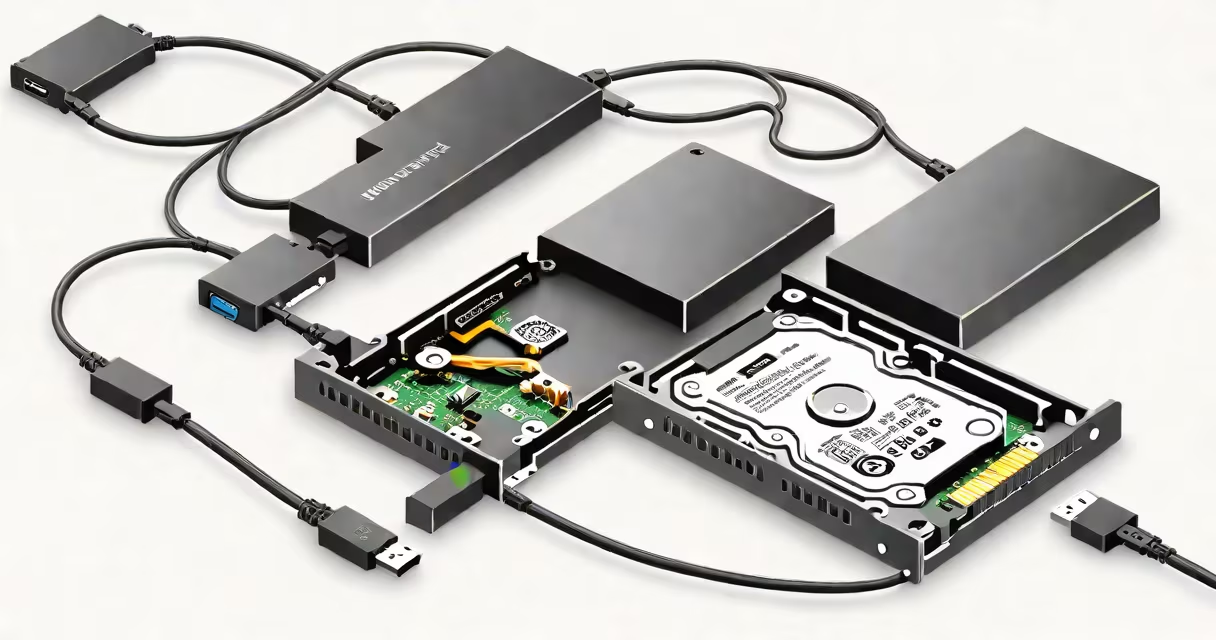
An internal to external hard drive adapter converts a 2.5-inch or 3.5-inch SATA hard drive into a portable USB storage device. It connects the drive's SATA interface to a USB port, enabling data access without installing the drive in a computer.
These adapters are essential for retrieving data from old drives, upgrading storage, or using a spare drive as backup. They work with both mechanical HDDs and SSDs that use standard SATA interfaces. The adapter handles power delivery and data transfer through a single USB cable in most cases-but 3.5-inch drives often require an external power supply due to higher power demands.
For example, a 3.5-inch desktop hard drive from a failed server can be plugged into a USB port using a powered adapter. The system recognizes it as a removable drive, allowing file recovery or migration. Without such an adapter, the drive remains unusable unless installed in a working machine.
The adapter acts as a bridge between the SATA interface on the hard drive and the USB protocol used by computers. Inside, a controller chip translates SATA commands into USB signals. This process is transparent to the operating system, which sees the drive as a standard USB mass storage device.
Data flows from the drive's platters or flash memory through the SATA connection to the adapter's controller, then over USB to the host computer. Transfer speeds depend on the USB version: USB 3.0 (5 Gbps) supports up to ~450 MB/s, while USB 2.0 (480 Mbps) caps at ~40 MB/s. A 3.5-inch drive running at 7,200 RPM may achieve 150-200 MB/s read speeds, but USB 2.0 limits it to roughly 30 MB/s.
Power management is critical. Most 2.5-inch drives draw less than 500 mA and can run off USB bus power. But 3.5-inch drives typically require 12V and 1A-well beyond USB's 5V/500mA limit. An external power adapter or a powered USB hub is necessary to avoid drive failure or connection drops.
Adapters fall into two categories based on drive size and power needs:
| Type | Drive Size | Power Source | Use Case |
|---|---|---|---|
| SATA to USB 3.0 (2.5-inch) | 2.5-inch HDD/SSD | USB bus power | Portable backup, laptop drive recovery |
| SATA to USB 3.0 (3.5-inch) | 3.5-inch HDD/SSD | External 12V power supply | Server drive recovery, large capacity storage |
| USB-C to SATA (2.5-inch) | 2.5-inch SSD/HDD | USB-C bus power | Modern laptops, fast transfers |
Not all drives are compatible. Some older drives (pre-2005) use IDE instead of SATA. These require an IDE-to-SATA adapter, which is rarer and less reliable. Also, certain enterprise drives with firmware locks or encryption may fail to mount, even with proper hardware.
A key distinction: these adapters do not format drives. They only enable access. If a drive shows as "unallocated" or "not initialized," it requires disk management tools-Windows Disk Management or macOS Disk Utility-to assign a partition and file system.
Many users assume that any SATA drive will work with any adapter. That's false. A 3.5-inch drive plugged into a 2.5-inch-only adapter fails to power on. Conversely, connecting a 2.5-inch drive to a 3.5-inch adapter risks physical damage due to misalignment.
Another misconception: all adapters support TRIM. Only those with native support for the ATA TRIM command allow SSDs to maintain performance over time. Without TRIM, SSDs degrade faster. Check the product specs-many budget models lack this feature.
I once used a $12 adapter to recover photos from a 2.5-inch drive in a dead laptop. The drive showed up in Windows Explorer, but files were corrupted. After testing with a different adapter, I discovered the original had a failing controller. The second adapter reported "I/O error" during read attempts, confirming hardware failure. The lesson: an adapter reveals drive status, but doesn't fix underlying issues.
Use an internal to external hard drive adapter when you need to access data from a drive not currently installed in a system. Examples include recovering files from a broken desktop PC, repurposing a 6 TB internal hard drive as a backup drive, or transferring data between systems without reinstalling OSes.
For instance, a 6 TB internal hard drive from a decommissioned NAS can be converted into a portable backup solution using a powered SATA-to-USB 3.0 adapter. Once connected, it appears as a drive letter in File Explorer. You can copy documents, media, or system images. This avoids the cost of buying a new external drive.
These adapters are also useful for diagnostics. If a computer won't boot, connecting the internal drive externally allows you to browse files, identify missing system components, or verify whether a crash was caused by filesystem corruption.
They're not ideal for continuous use. Constant read/write cycles on a drive not designed for external operation may shorten lifespan. For long-term storage, consider dedicated external enclosures with better cooling and shock protection.
Check for features like LED indicators for activity and power status. Some models include a locking mechanism to prevent accidental disconnection. Avoid adapters with plastic casings that overheat under sustained load-metal housings dissipate heat better.
Hitachi external hard drives, such as the Hitachi Travelstar series, are known for reliability in portable applications. However, they're not designed for direct SATA-to-USB conversion. If you want to use a Hitachi internal drive externally, pair it with a standalone adapter-not a branded enclosure.
Always test the adapter with a known-good drive first. If the system doesn't recognize the drive, try a different USB port or cable. Use a powered USB hub if the drive requires more power than the port supplies.
Internal to external hard drive adapters are practical tools for data recovery, drive repurposing, and diagnostics. They turn obsolete or unused drives into functional storage. But they don't replace proper backups or drive maintenance. Always verify data integrity after transfer.
Understanding how these adapters function-and their limitations-helps avoid wasted time and lost files. migrating data from a failed server, the right adapter makes the difference between success and frustration.