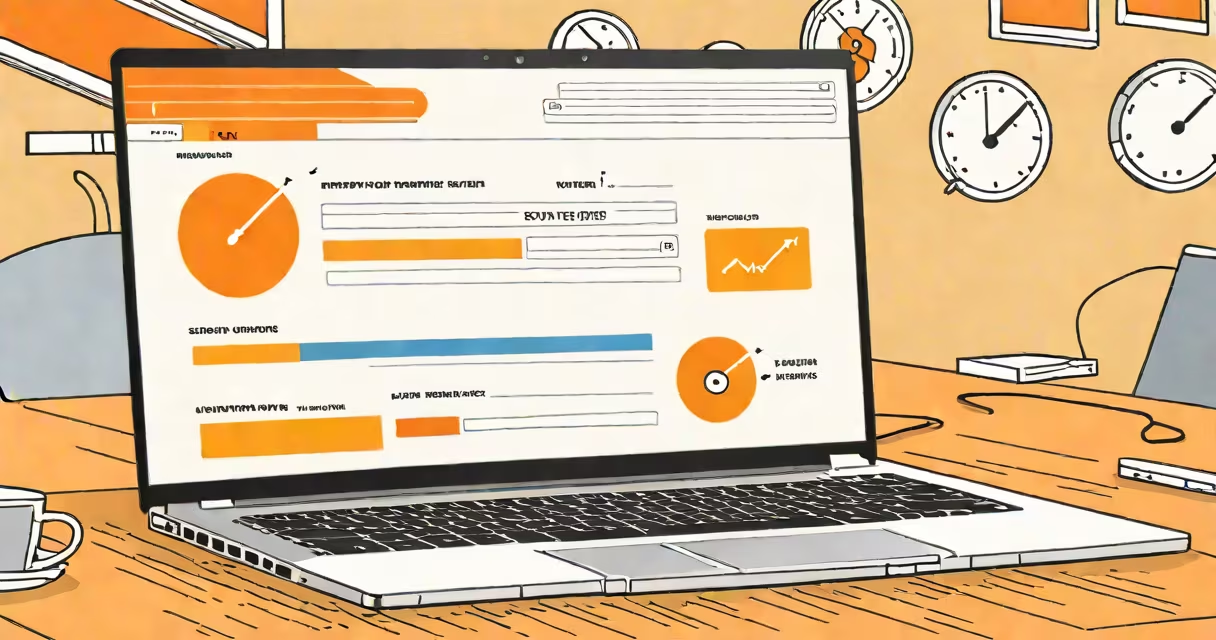
A laptop is slow when applications take too long to launch, the system freezes during basic tasks, or the interface responds with noticeable delay. This typically results from insufficient RAM, high disk usage, outdated software, or background processes consuming CPU and memory.
When a laptop runs slowly, it often fails to keep up with everyday demands like browsing multiple tabs, editing documents, or streaming video. The issue may appear suddenly after a software update or gradually worsen over time due to accumulated files and startup programs.
Performance degradation isn't always due to aging hardware. A laptop that was fast when new can become sluggish after installing unnecessary software, malware, or failing to clear temporary files. Identifying the root cause requires checking resource usage, managing startup items, and verifying system health.
Modern laptops rely on a balance between processing power, memory, storage speed, and efficient software management. When any component is overloaded, the entire system slows down.
For example, a 2019 laptop with 8GB of RAM and a traditional hard drive (HDD) may struggle with 30 browser tabs open simultaneously. The HDD cannot read data quickly enough, causing the system to swap memory to disk-a process called virtual memory paging. This leads to lag, frozen windows, and prolonged wait times.
Even solid-state drives (SSDs) can degrade over time. After 3-5 years of regular use, SSDs lose write endurance and suffer from reduced read speeds. A study by Backblaze found that SSD failure rates increase after 4 years of continuous operation, which can manifest as slow boot times and delayed file access.
Several factors contribute to a laptop becoming slow. The most common include:
As an example, a Windows 10 laptop with 4GB RAM running Chrome, Zoom, and a photo editor simultaneously may hit 95% CPU usage. Task Manager shows "System" and "Windows Explorer" consuming most of the CPU. Disabling unnecessary startup apps reduced CPU usage to 40% and restored responsiveness.
Not all slowness is the same. Different symptoms point to different underlying problems.
| Symptom | Most Likely Cause | Fix Strategy |
|---|---|---|
| Slow boot time | Too many startup programs, failing SSD | Disable non-essential startup apps via Task Manager |
| Freezes during app switching | Low RAM, high memory usage | Upgrade to 16GB RAM or close unused applications |
| High fan noise with no load | Overheating, dust buildup, failing thermal paste | Clean fans and vents; replace thermal compound |
| Web pages load slowly | Outdated browser, poor internet connection, DNS issues | Update browser, switch to Google Public DNS (8.8.8.8) |
One overlooked factor is thermal throttling. When a laptop's CPU reaches 90°C, it automatically reduces clock speed to prevent damage. On a hot summer day, a laptop left on a bed or blanket can throttle even during light work, leading to perceived slowness despite normal resource usage.
A slow laptop is not inherently old. A 2022 model with 16GB RAM and an SSD can still perform poorly if misconfigured or infected with malware. Conversely, a 2015 laptop with 8GB RAM and an SSD can remain usable for years with proper maintenance.
Some users assume upgrading to a faster processor will fix performance issues. But if the bottleneck is disk speed or memory, replacing the CPU offers little benefit. For example, upgrading from an Intel Core i5-8250U to an i7-1165G7 on a system with a 5400 RPM HDD won't improve boot time-it's the disk that's limiting speed.
Another misconception is that clearing the cache will solve all slowdowns. While clearing browser cache improves web performance, it doesn't address background services, startup bloat, or hardware limitations. A clean cache doesn't reduce CPU usage from a corrupted driver or a runaway process.
I diagnosed a Dell Latitude 5400 that took 4 minutes to boot and froze when opening Excel. Task Manager showed 98% CPU usage by "svchost.exe" and "Windows Update."
First, I checked startup programs. Twenty-three were enabled. I disabled all except essential ones like antivirus and Bluetooth. Boot time dropped to 1 minute 15 seconds.
Next, I ran a full scan with Windows Defender. It detected a malicious script disguised as a PDF updater. Removing it freed 2.3GB of RAM and reduced CPU spikes.
Finally, I cleared the temp folder and ran Disk Cleanup. Free space increased from 8% to 32%. The laptop now runs smoothly for daily office tasks.
After the fix, the laptop felt like new-without replacing hardware. This demonstrates that most slowdowns stem from software mismanagement, not hardware failure.
However, wiping the device erases all data. Always back up personal files first. Use a USB recovery drive created from Microsoft's Media Creation Tool. The process takes 30-45 minutes but restores factory-level performance.
A laptop is slow not because it's broken-but because it's overloaded, misconfigured, or neglected. With targeted adjustments, most systems regain speed within hours.