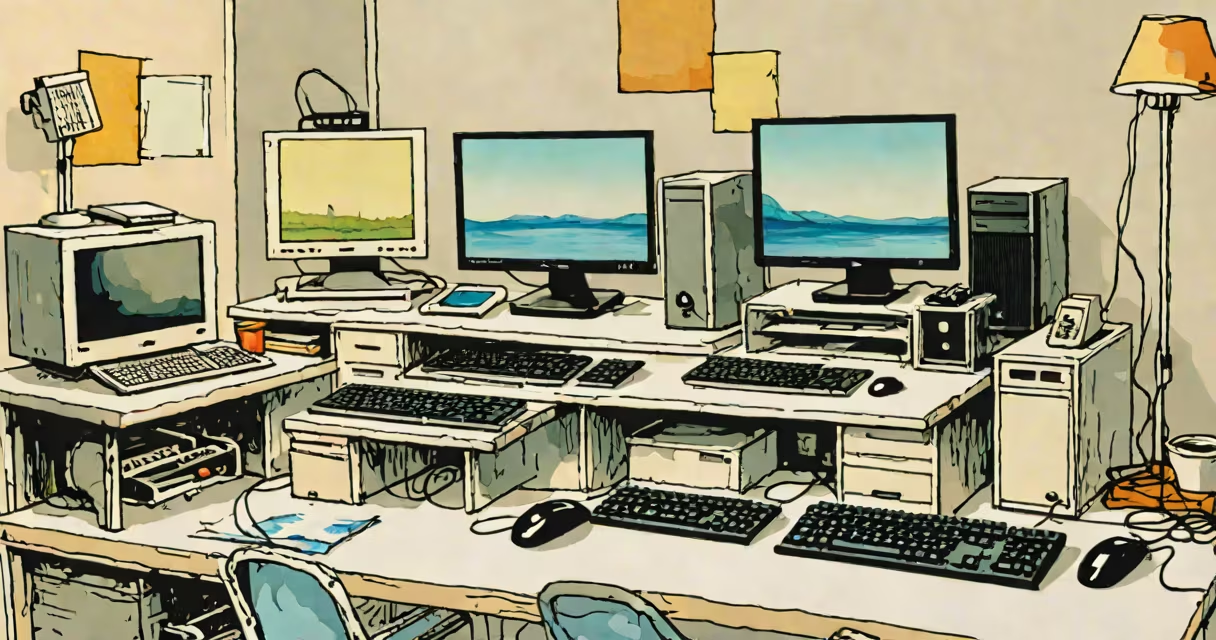
An output device is a hardware component that conveys processed data from a computer to a user in a human-readable or usable form. It translates digital signals into visual, auditory, or physical formats such as images on a screen, sound through speakers, or printed documents.
Computers process input-like keystrokes or sensor data-and produce results. Output devices deliver those results to users. Without them, digital work remains invisible or inaccessible. A monitor shows a spreadsheet's final calculations. A printer produces a signed contract. Speakers play a video's soundtrack.
These devices operate under control from the operating system and drivers. For example, Windows sends graphics commands to a GPU, which renders pixels on a monitor via HDMI or DisplayPort. Audio data flows from the OS to a sound card, then to headphones through a 3.5mm jack.
Each output device converts binary data into a perceivable signal. This conversion happens in layers: software, firmware, and hardware. The CPU processes instructions, the GPU handles visuals, and dedicated chips manage audio or printing.
For instance, when you watch a video, the OS decodes the file using codecs. The GPU renders frames at 60 frames per second. The monitor refreshes each frame in real time. If the monitor runs at 120Hz, it updates twice as fast, reducing motion blur.
Printers follow a similar path. The OS sends a document to a print spooler. The printer driver translates the layout into raster image format. The print head applies ink based on pixel patterns. A 600-dpi printer places 600 dots per inch, creating sharp text and images.
Output devices fall into categories based on the sensory modality they engage: visual, auditory, or physical.
| Type | Examples | Primary Use | Resolution/Spec |
|---|---|---|---|
| Visual | Monitor, projector, VR headset | Displaying text, images, video | 1920×1080 (Full HD), 4K (3840×2160) |
| Auditory | Speakers, headphones, earbuds | Playing sound, music, voice | 20 Hz - 20 kHz frequency response |
| Physical | Printer, plotter, 3D printer | Producing tangible copies | 600 dpi (inkjet), 1000 dpi (laser) |
Monitors dominate personal computing. A 27-inch 4K monitor displays 8.3 million pixels. At 144Hz refresh rate, it supports smooth gameplay. High changing range (HDR) improves contrast, making dark scenes deeper and bright areas brighter.
Audio output devices vary widely. Wired headphones use analog signals sent through a 3.5mm jack. Bluetooth speakers use wireless protocols like aptX Low Latency to reduce audio delay. A pair of studio headphones may have 15-20 mm drivers and 32 ohm impedance, affecting volume and clarity.
Printers serve both home and office environments. Inkjet printers use liquid ink sprayed through microscopic nozzles. A typical model prints 15 pages per minute in black and white. Laser printers use toner and heat to fuse particles onto paper. They handle 30+ pages per minute and are better for high-volume text.
Many assume all peripherals are output devices. That's incorrect. A keyboard inputs data. A mouse moves a cursor. These are input devices. Confusing them leads to misdiagnosis during troubleshooting.
Another mistake: thinking output quality depends only on the device. It doesn't. Resolution, color accuracy, and performance depend on the source signal and connection. A 4K monitor connected via VGA cable shows lower quality than one linked via HDMI. VGA limits bandwidth, causing color bleeding and reduced sharpness.
Also, people often think "output" means only screens and sound. But tactile feedback devices like vibration motors in game controllers or force-feedback joysticks are output too. They send physical sensations back to the user. A racing wheel that vibrates during collisions delivers feedback based on simulated road conditions.
I set up a home office last year. I needed a reliable way to view spreadsheets, attend Zoom calls, and print reports. I chose a 27-inch IPS monitor with 2560×1440 resolution. It supports HDR10 and has built-in speakers.
The monitor connects via DisplayPort. I used a USB-C to DisplayPort adapter because my laptop only has USB-C ports. The connection delivers full 1440p at 60Hz. No lag, no artifacts.
For audio, I added a pair of wired headphones with noise cancellation. They connect via 3.5mm jack. During calls, background noise drops below 20 dB, improving clarity.
For printing, I bought a laser printer. It prints 30 pages per minute in black and white. It supports Wi-Fi Direct, so I can send files from my phone without a router. I tested it with a 10-page PDF. It took 22 seconds-under one page per second.
This setup meets my needs. All components work together. The monitor shows data. The headphones deliver sound without distortion. The printer outputs clean, fast documents.
Understanding what is output device helps avoid mismatched choices. A low-resolution monitor won't show fine details in charts. A slow printer delays workflows. Choosing the right device matters.
When selecting output devices, verify compatibility with your system. Check port types, driver availability, and supported resolutions. Always test with real tasks-not just specs.